Conversion APIs
Server side tagging
Serve the ThoughtMetric pixel from your own domain for more accurate tracking.
Server-side tagging enables the ThoughtMetric pixel to load from your website's domain (for example, tm.mysite.com) instead of thoughtmetric.io.
Benefits of server-side tagging
Server-side tagging improves ThoughtMetric's ability to accurately track users and connect all their touchpoints by getting around ad blockers, iOS 14, and Safari ITP. It delivers the ThoughtMetric tracking pixel to your store through your own first-party domain name, so that our code looks like a normal part of your store. This prevents ad blockers from blocking our tracking.
Roughly 30% of all users currently block tracking with an ad blocker, and an even higher percentage use iOS and Safari, so this feature improves data quality drastically.
Set up server-side tagging
-
Generate your domain and IP address
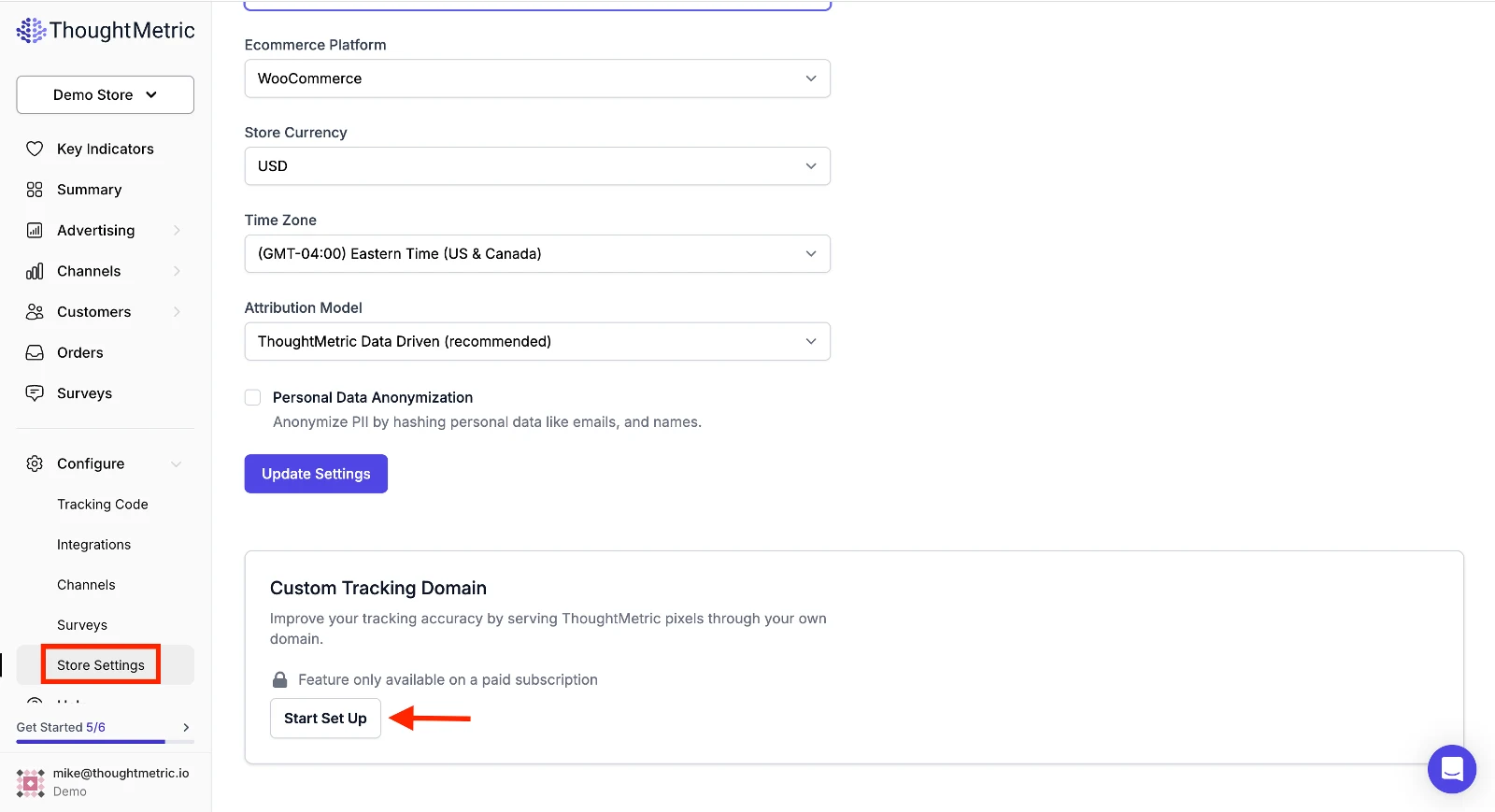
Go to your Store Settings page (under Configure) and scroll down to the Custom Tracking Domain section. Click Start Set Up to generate your custom domain and IP address.
-
Set up the DNS record
Add a DNS A record that points the custom domain generated in the previous step to the IP address generated in the previous step. This forwards all traffic to the subdomain to ThoughtMetric, while it still appears to browsers and ad blockers as a built-in part of your site.

Create the A record using the custom domain and IP assigned to you.
If you set up this DNS entry through Cloudflare, make sure to disable the "proxy through cloudflare" setting for this entry.
If you need help adding the A record, here are instructions for some popular domain providers:
-
Test that DNS is correctly configured
Use a DNS testing tool like DNS Checker to confirm that your custom domain resolves to your custom IP.
If the DNS is not properly configured, you could break ThoughtMetric tracking for your store entirely.
If dnschecker.org does not confirm that your custom domain points to your custom IP, your DNS may not be properly configured. Here are some common troubleshooting steps:
- It can take up to 30 minutes for DNS settings to propagate, so you may simply need to wait and check again later.
- Some DNS systems only want the subdomain entered in the "host name" field. For example, if your custom domain is
abc123.mystore.com, enter onlyabc123in the "host name" field.
-
Update your existing tracking code
Now that your DNS is configured, update the tracking code on your website to use the new domain you just set up.
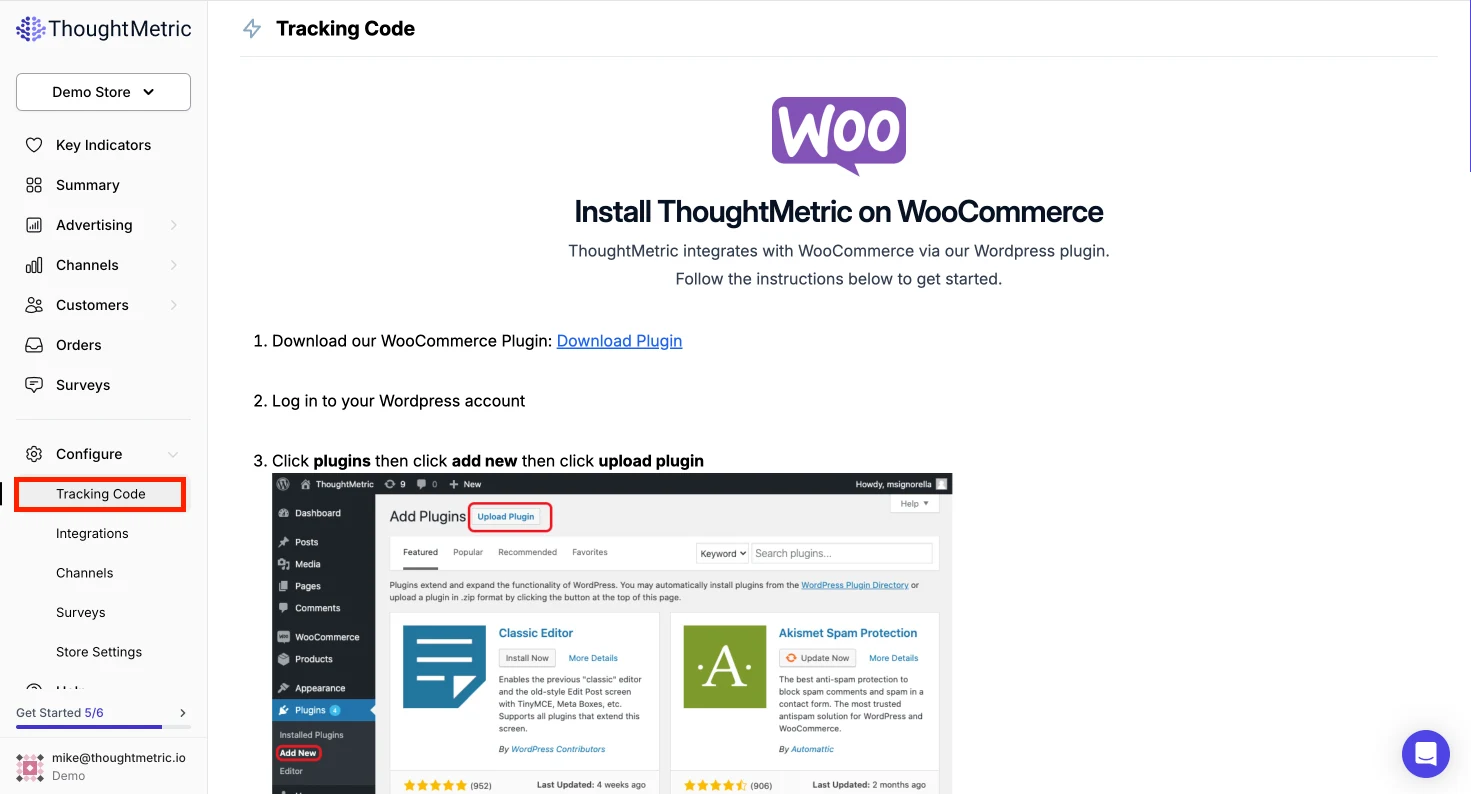
Head to the Tracking Code section of ThoughtMetric. Now that the custom domain is enabled for your store, the tracking code in the setup instructions is modified to use the custom domain you just configured. Go through the tracking code setup instructions again and replace the old ThoughtMetric tracking code on your site with the code in the instructions.