Ad platforms
Connect AppLovin
Sync ad spend and campaign performance from AppLovin.
Connect the AppLovin Ads integration to track your spend, ROI, and campaign performance.
-
Open your AppLovin keys
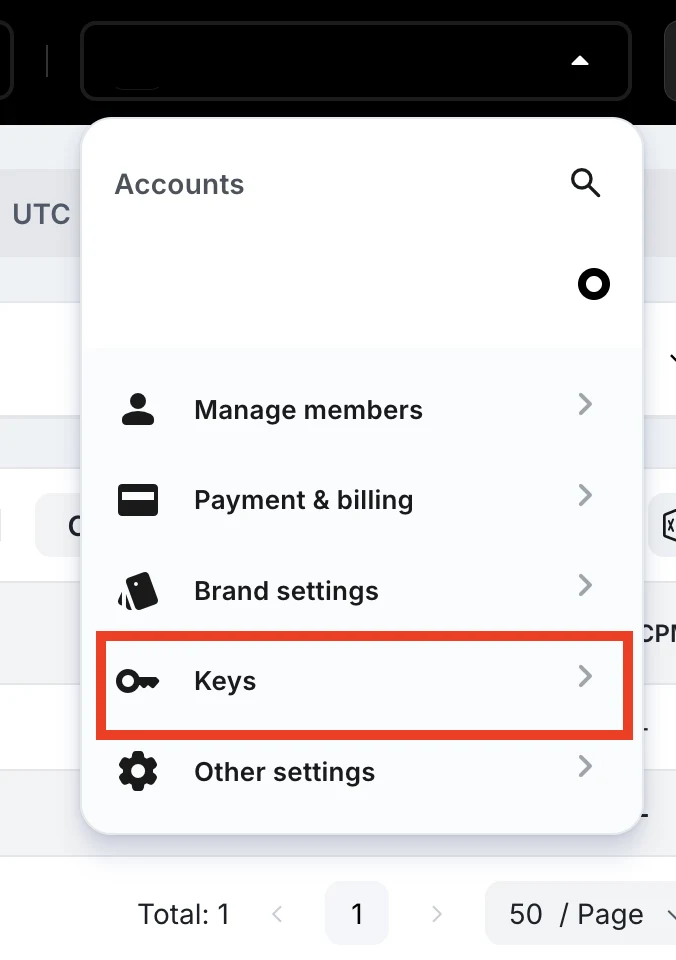
Log in to AppLovin, click the Account menu in the upper right, and then click Keys underneath it.
-
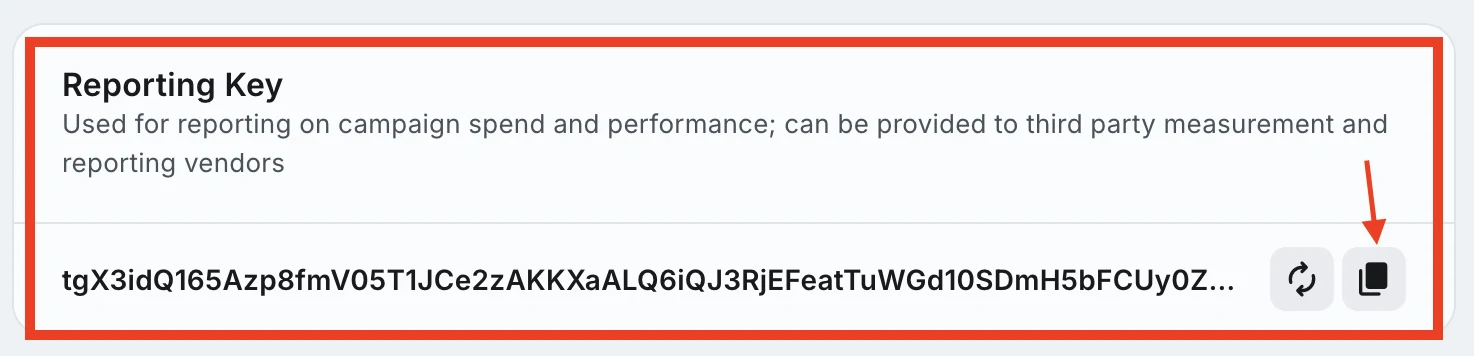
Copy the Reporting Key
Press the Copy button indicated by the arrow to copy the Reporting Key.
-
Find your Account ID
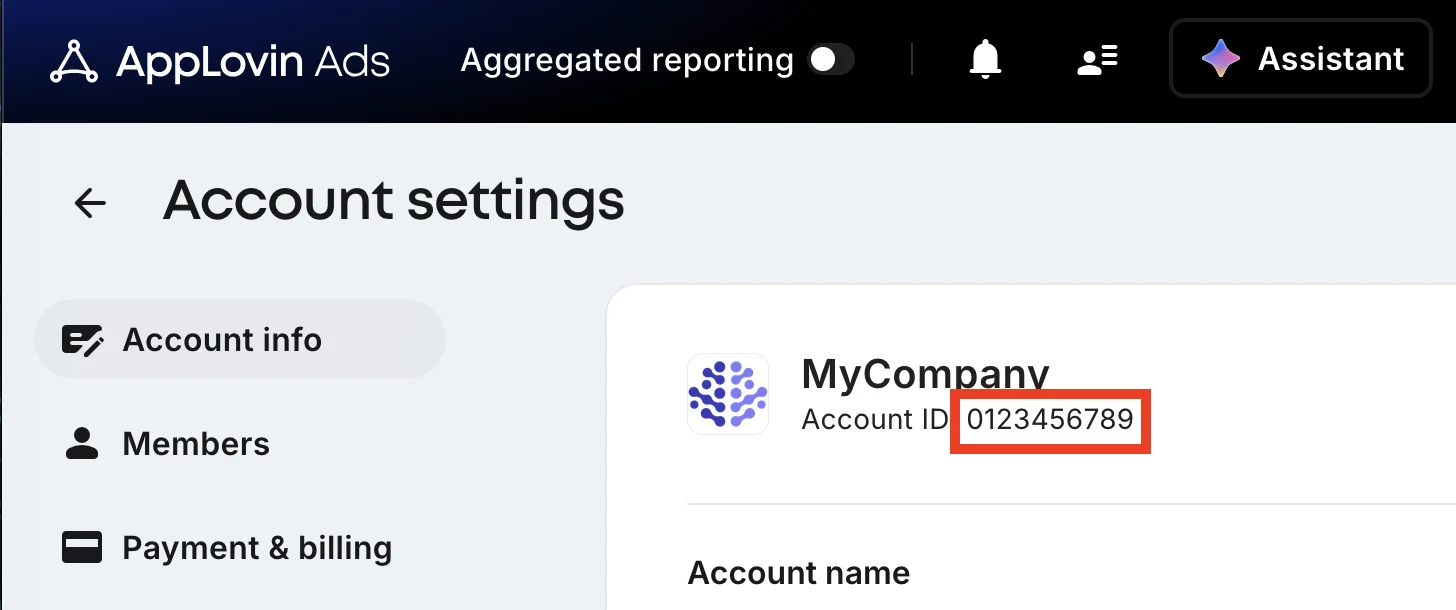
You also need your AppLovin Account ID, which you can find by clicking Account Info in the left sidebar.
-
Open Configure in ThoughtMetric
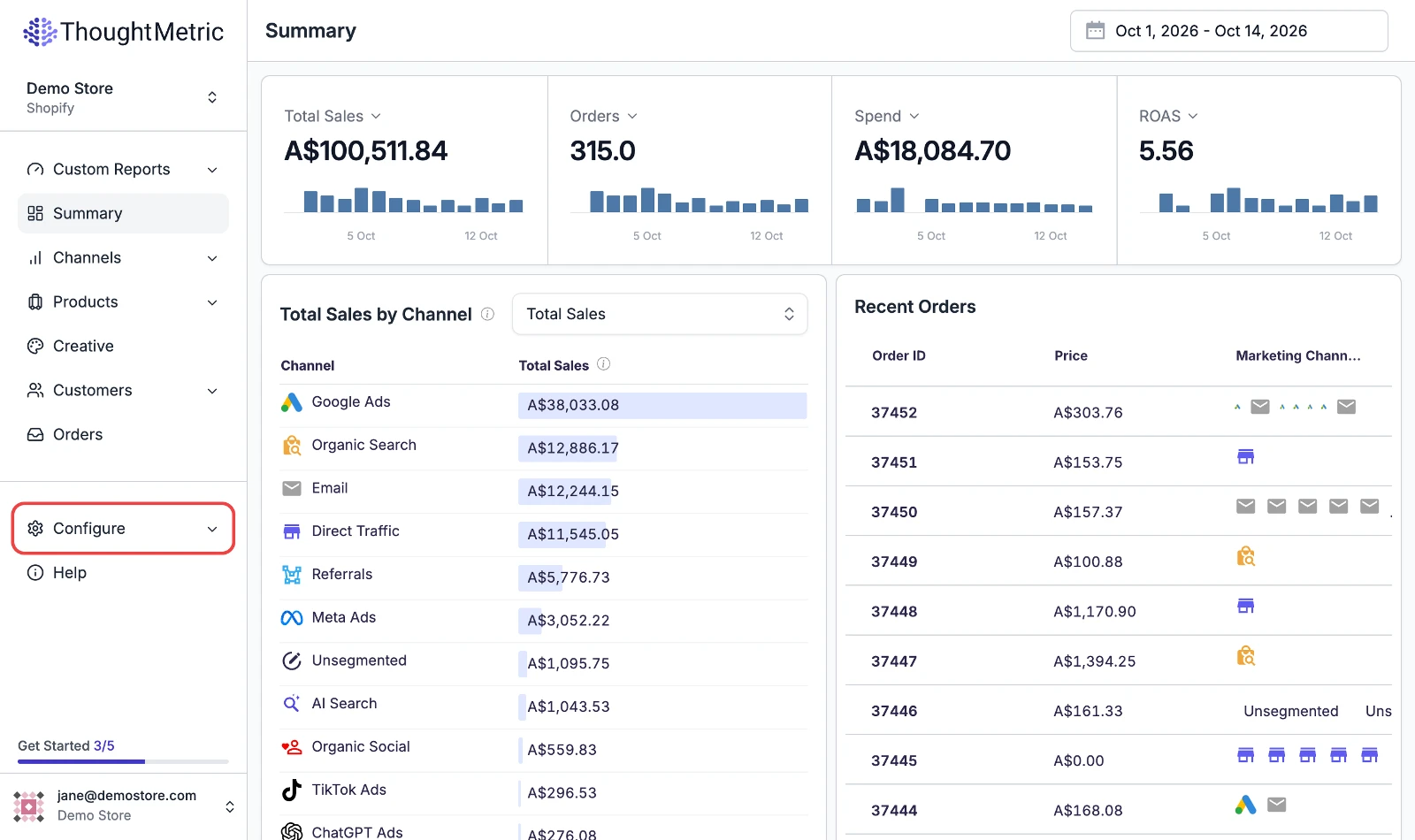
In ThoughtMetric, navigate to Configure in the left-side navigation menu.
-
Start the AppLovin Ads connection
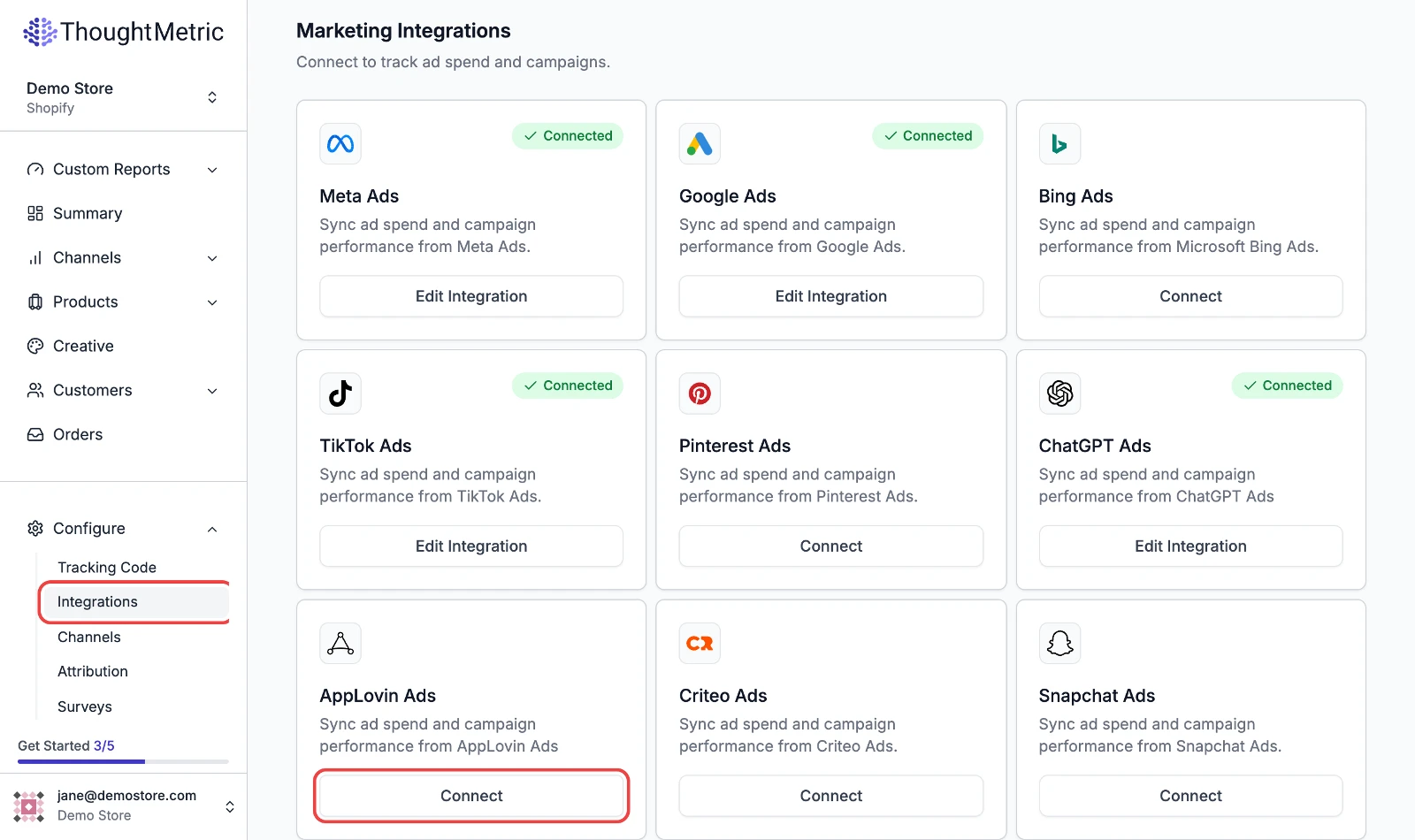
Select Integrations and then click Connect under AppLovin Ads.
-
Enter your Account ID and API key
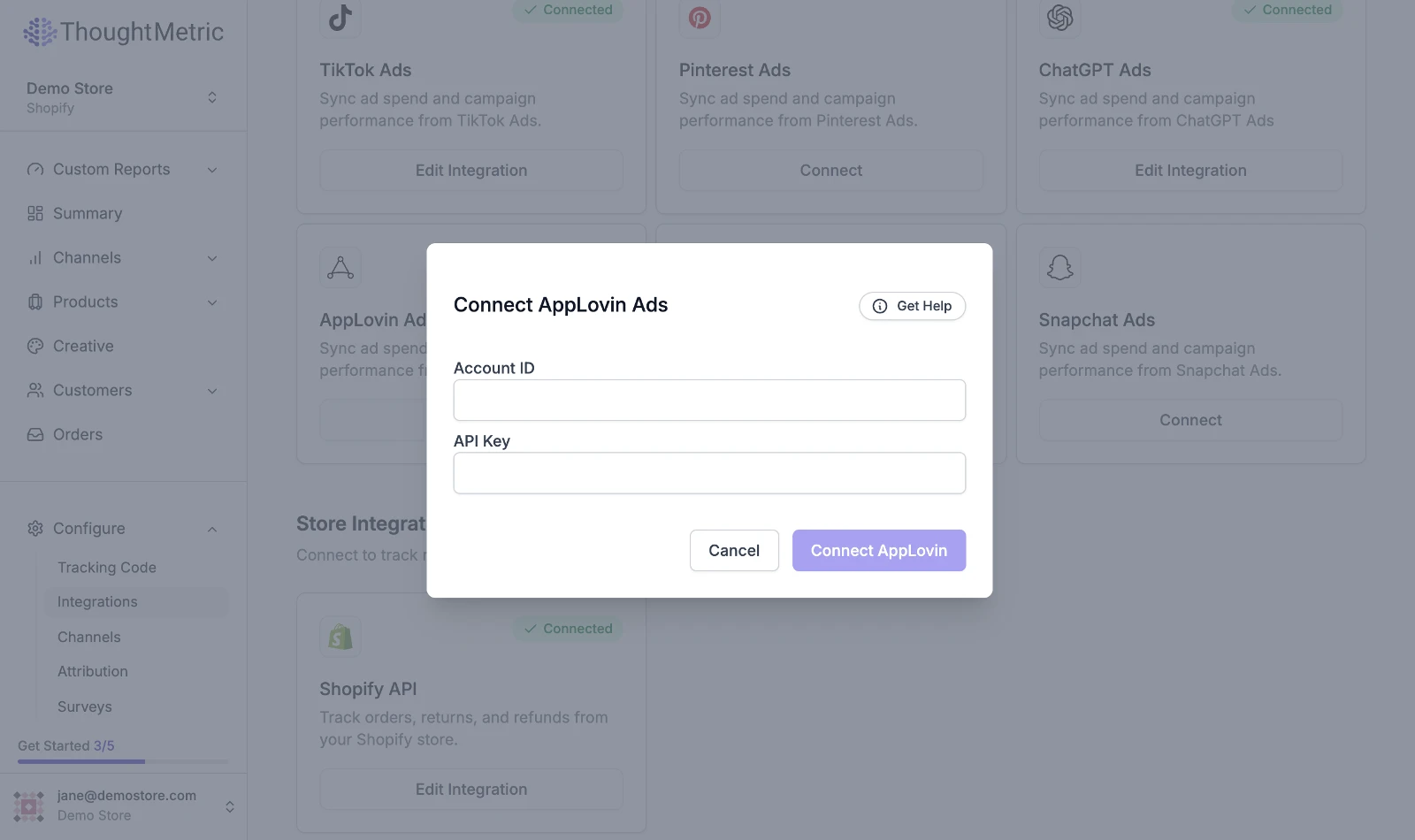
A popup appears, prompting you for your AppLovin Ads Account ID and API Key. Enter the Account ID you found earlier and, underneath it, paste the Reporting Key you copied into the API Key field. Then press Connect AppLovin.
-
Confirm the connection
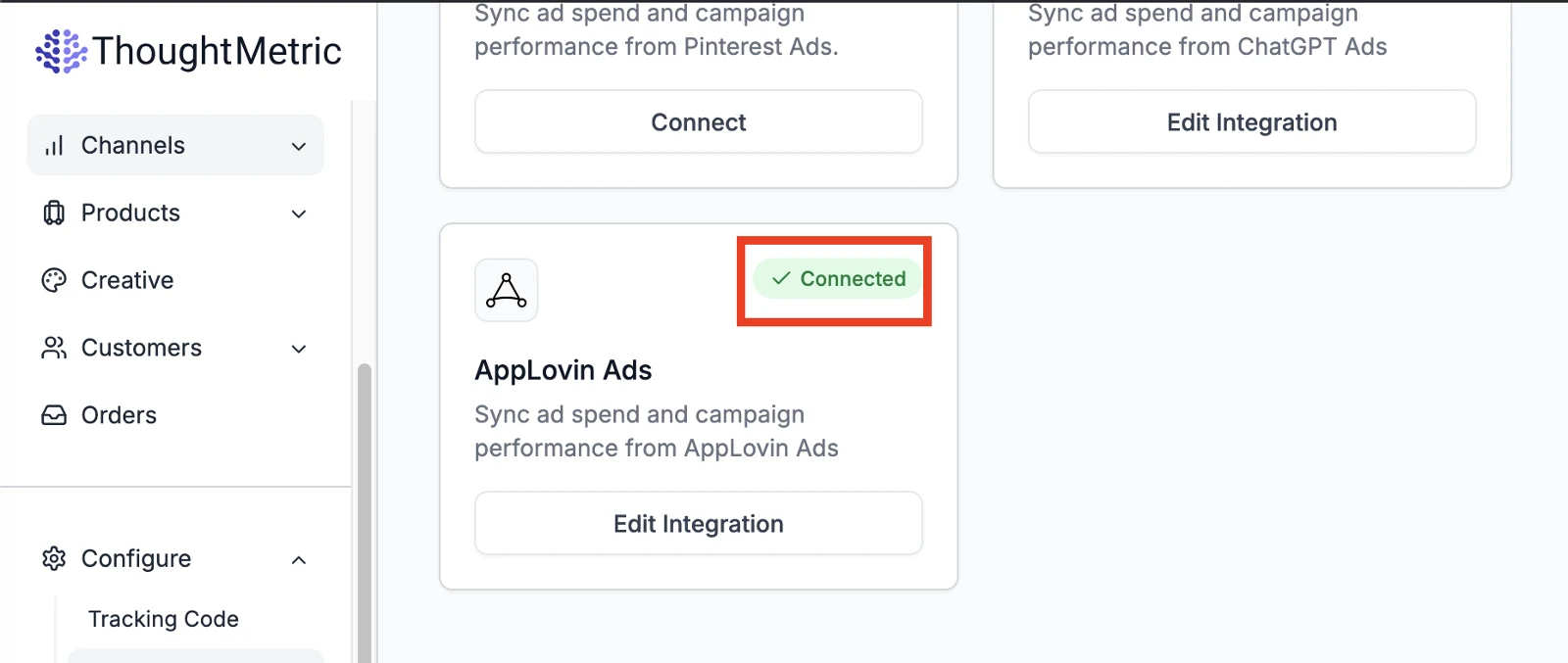
ThoughtMetric validates your key with AppLovin. If validation succeeds, the integration shows as Connected. Otherwise, the error "AppLovin connection failed" is displayed.