
Ad platforms
Connect Facebook Ads
Sync ad spend and campaign performance from Facebook and Instagram.
Connect the Facebook Ads integration to track your spend, ROI, and campaign performance.
Connect your Facebook Ads account
-
Open Configure
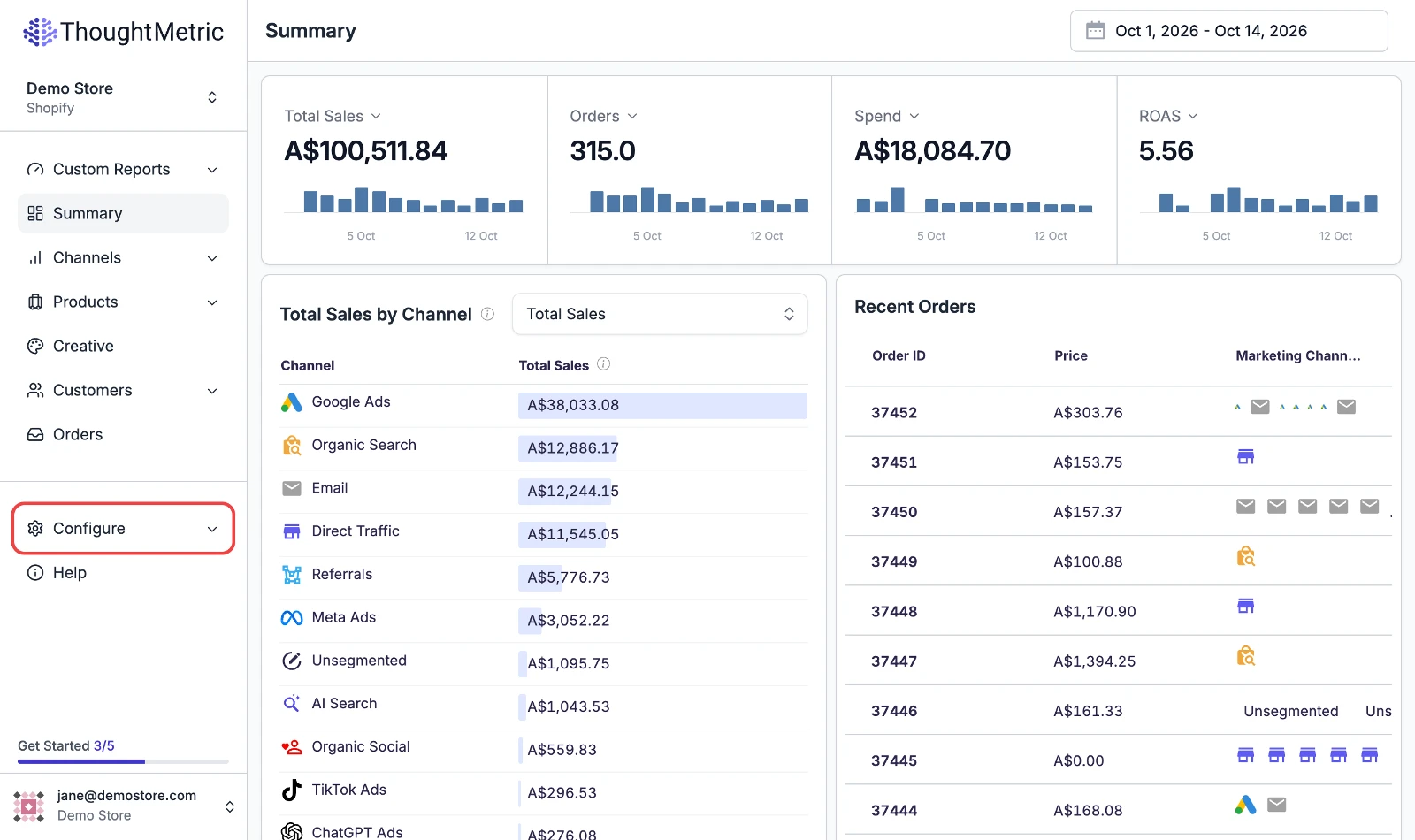
Click Configure in the left-side navigation bar.
-
Start the Facebook Ads connection
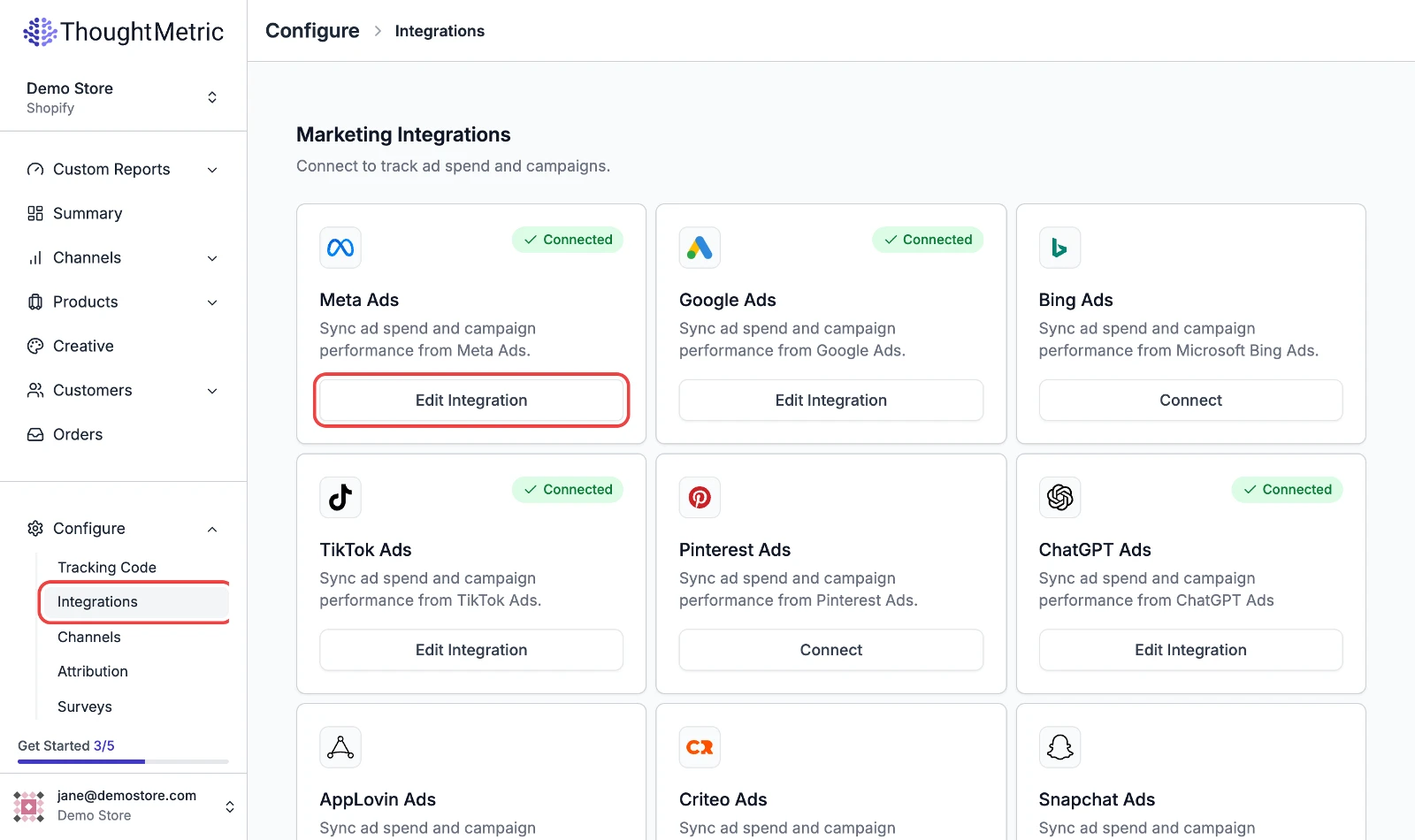
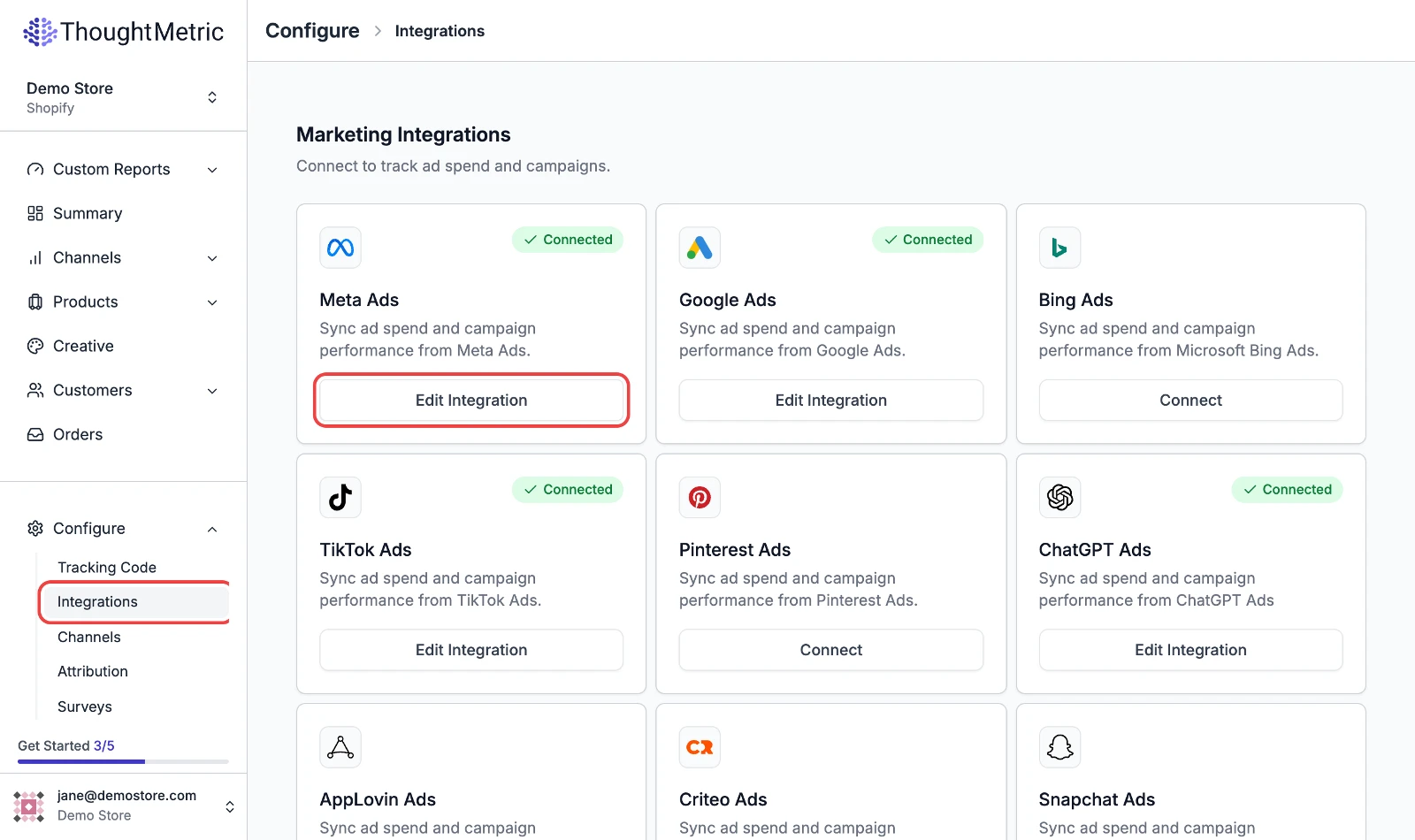
Select Integrations and then click Connect on the Meta Ads card. If an account is already connected, the button reads Edit Integration.
-
Log in to Facebook
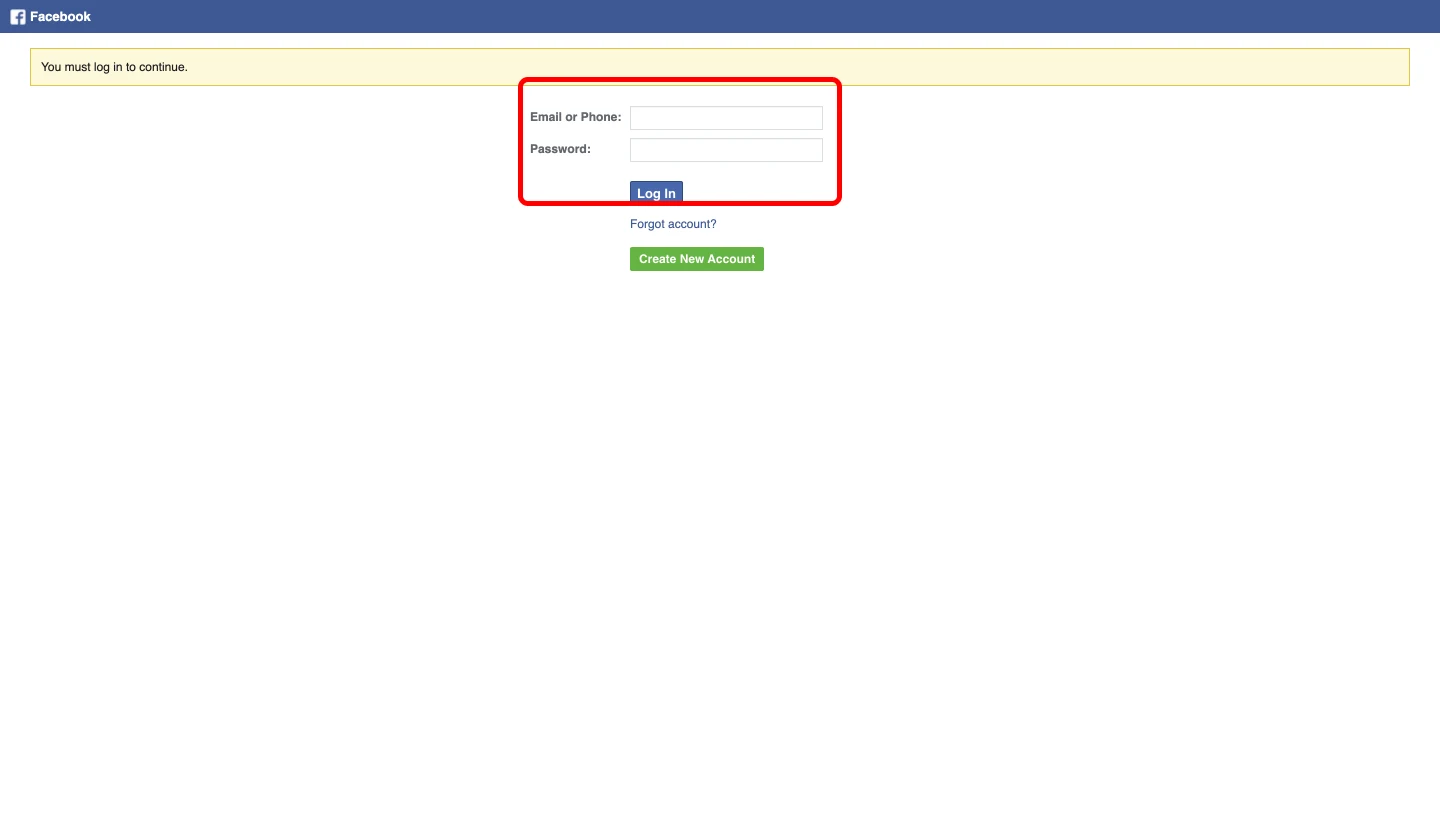
A Facebook popup appears, asking you to enter your credentials and log in.
-
Select your Facebook Pages
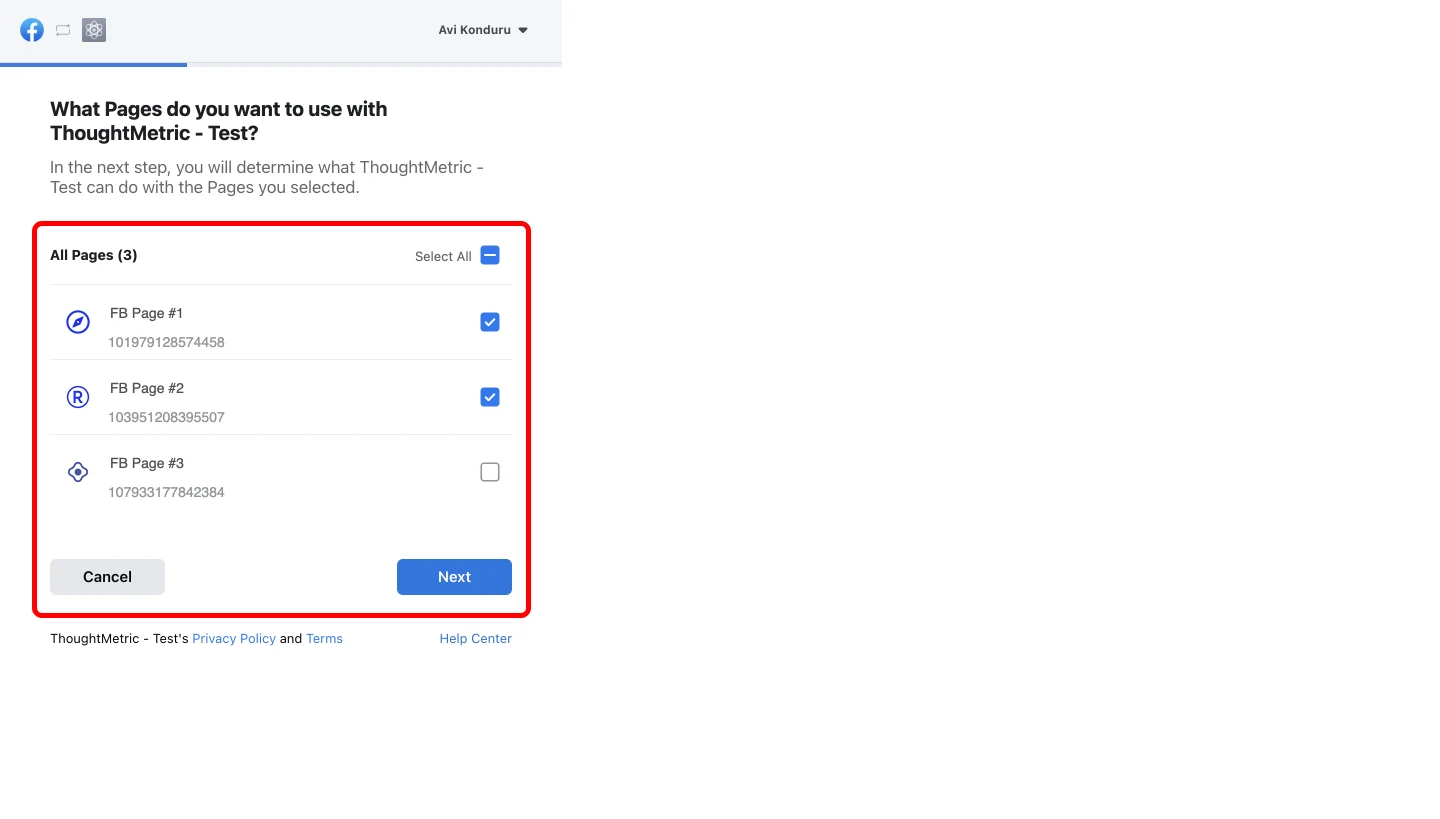
You are taken to a page that asks you to select the Facebook Pages you would like to connect with ThoughtMetric. After you have selected them, click Next.
It is very important to select all the Facebook Pages you want to connect for your entire organization, not just for the store you are integrating.
-
Allow the Facebook Ads permissions
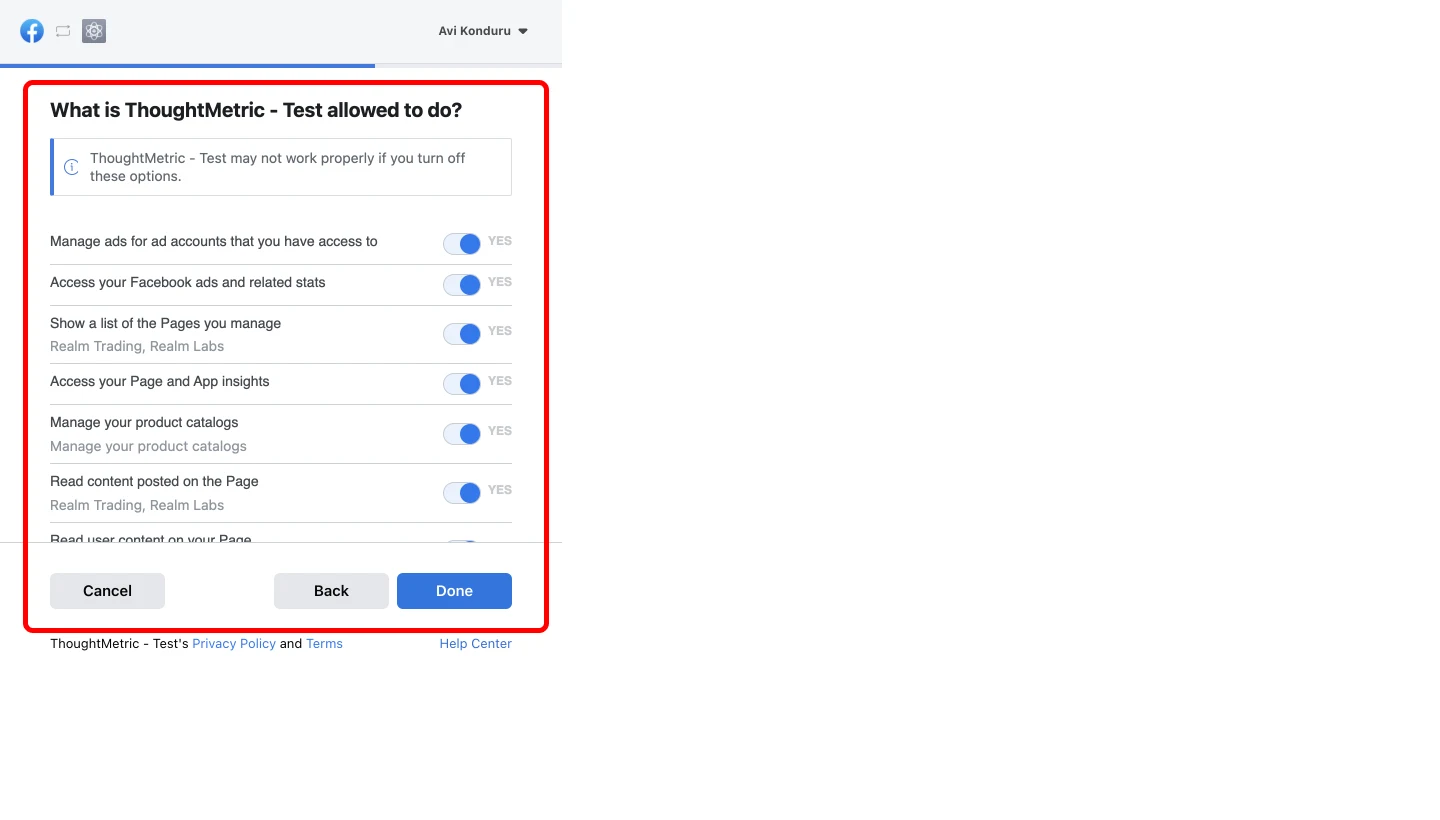
Next, a Facebook Ads permissions page asks which permissions you would like to give ThoughtMetric. After you have allowed all of the permissions, click Done.
To use ThoughtMetric properly and get the greatest accuracy on your data, it is important to give ThoughtMetric all of the allowed Facebook Ads permissions.
-
Confirm
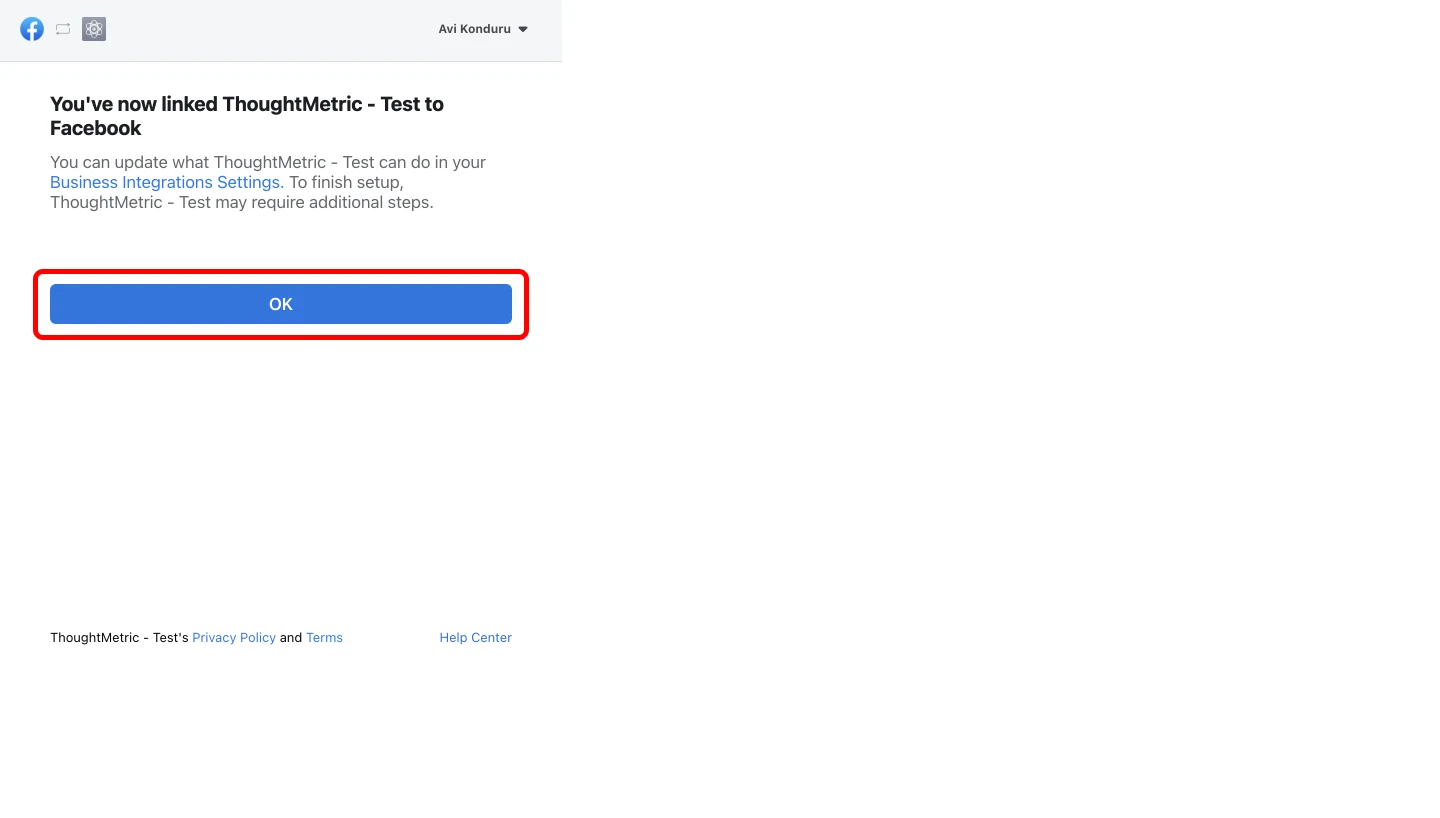
If done correctly, you are shown a page that looks like this. Click OK.
-
Select your Facebook Ads accounts
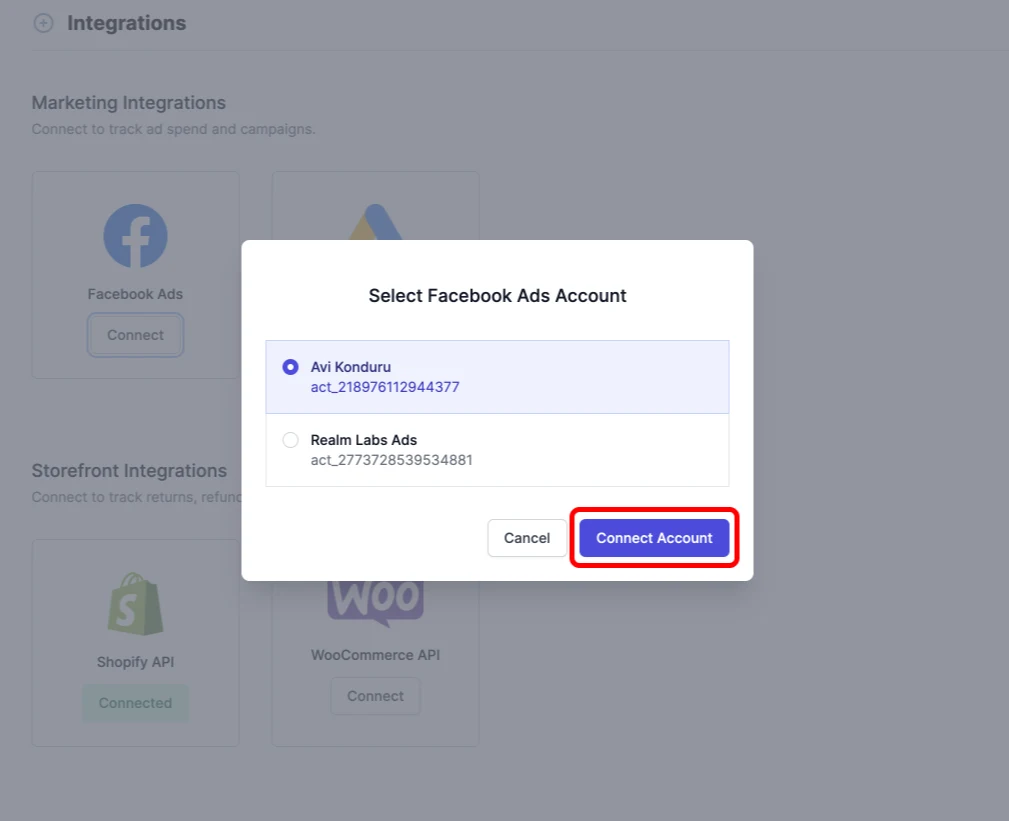
You are redirected back to ThoughtMetric, where you are asked to select which Facebook Ads account(s) you would like to connect. After you have made your selection, click Connect Account.
Connect only the Facebook Ads account(s) that you specifically want to monitor for the store you are currently integrating, not the wider organization.
-
Once you have successfully integrated with Facebook Ads, the integration shows as Connected.
Connect multiple Facebook Ads accounts
You can connect more than one Facebook Ads account to your ThoughtMetric account.
-
Open the Facebook Ads integration
Navigate to the Integrations page and click Edit Integration on the Meta Ads card.
-
Add or remove accounts
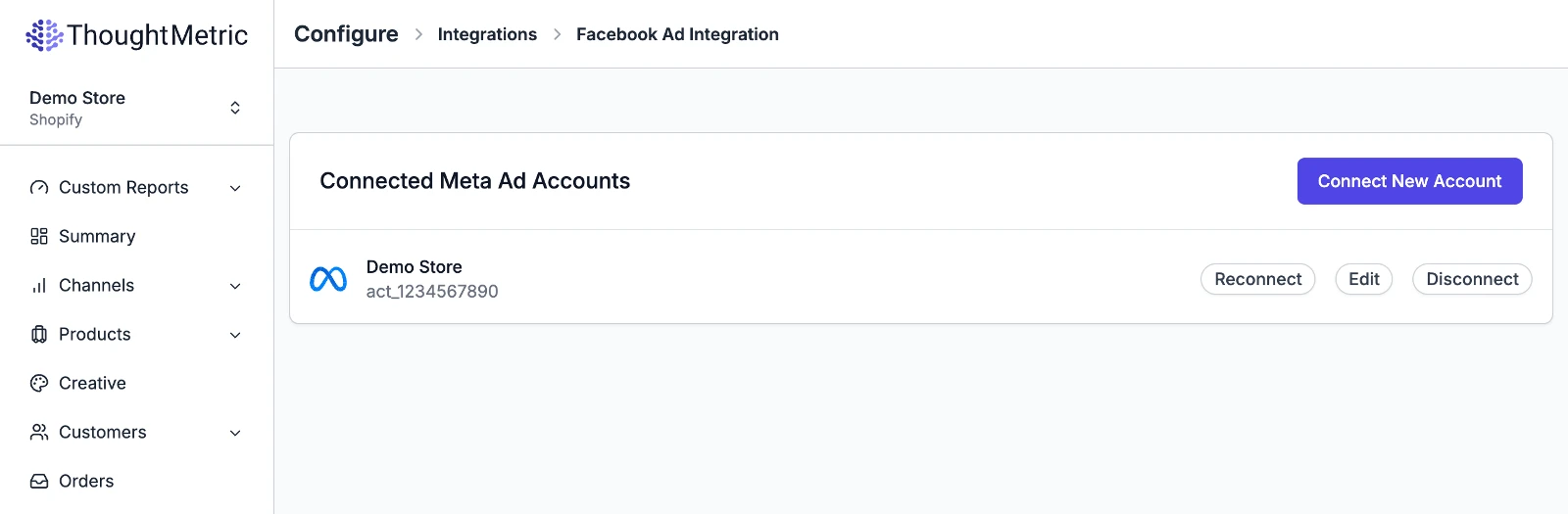
You are taken to a page that shows all of the Facebook accounts you currently have connected. Click the Connect New Account button to add a new account, or click the Disconnect buttons to remove old accounts.
Add tracking parameters to your ads
For the most accurate tracking of Facebook Ads, place the ThoughtMetric tracking parameter in the tracking area of every ad in your ad account.
ThoughtMetric tracking parameter:
tmsrc=facebookad&tmcid={{campaign.id}}&tmsid={{adset.id}}&tmid={{ad.id}}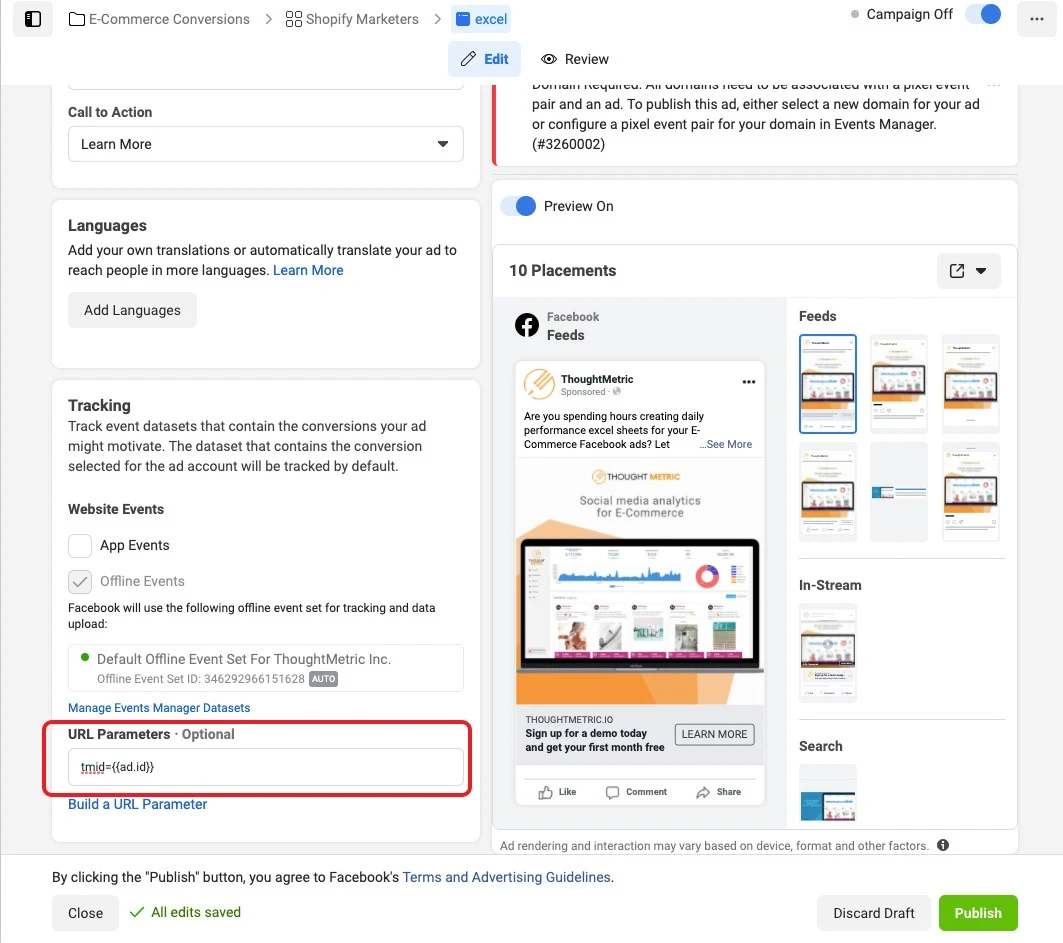
Updating ads resets the learning phase and requires Facebook to review and re-approve your ads. This should not dramatically affect ad performance.
If you already have URL parameters
If you already have tracking parameters in the URL parameters field, you can use the ThoughtMetric tracking parameters in addition to the tracking you already have in place.
Append the ThoughtMetric parameters to the end of your existing UTM string with an & symbol, starting with the tmsrc parameter.
For example, if your URL parameters field already contains this text:
utm_source=facebookAppend the ThoughtMetric tracking parameters so that the end result looks like this:
utm_source=facebook&tmsrc=facebookad&tmcid={{campaign.id}}&tmsid={{adset.id}}&tmid={{ad.id}}