
AI assistants
Connect ThoughtMetric to ChatGPT
Talk to your ThoughtMetric data from ChatGPT through MCP.
ThoughtMetric integrates directly with ChatGPT through the Model Context Protocol (MCP), so you can query your marketing attribution data, sales metrics, and advertising performance in natural language, right from the ChatGPT chat interface. Once connected, you can ask ChatGPT questions like "What were my sales by channel last week?" or "Show me my top campaigns by ROAS" and get instant answers pulled from your ThoughtMetric data.
Prerequisites
Before getting started, you need:
- A paid ChatGPT account (Plus, Team, or Enterprise). MCP connectors are not available on the free tier.
- An active ThoughtMetric account with at least one project set up and receiving data.
Set up the connector
-
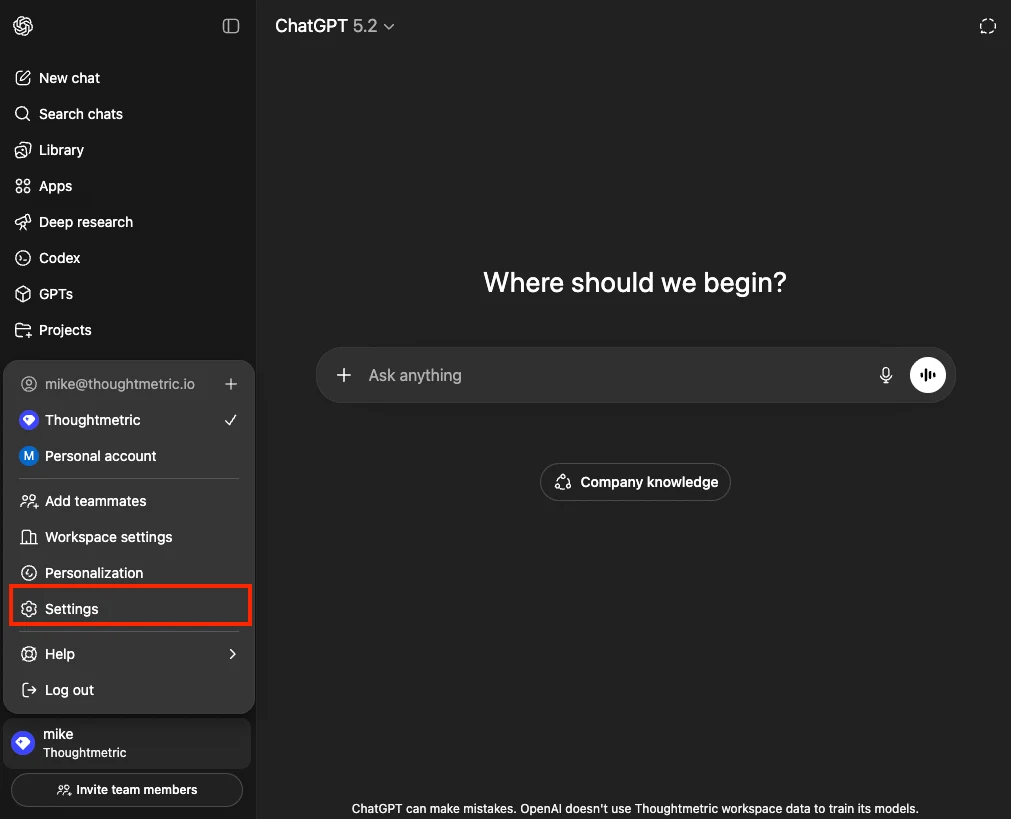
Open ChatGPT settings
In ChatGPT, click the account button in the bottom-left corner of the sidebar. In the menu that appears, click Settings to open the settings panel.
-
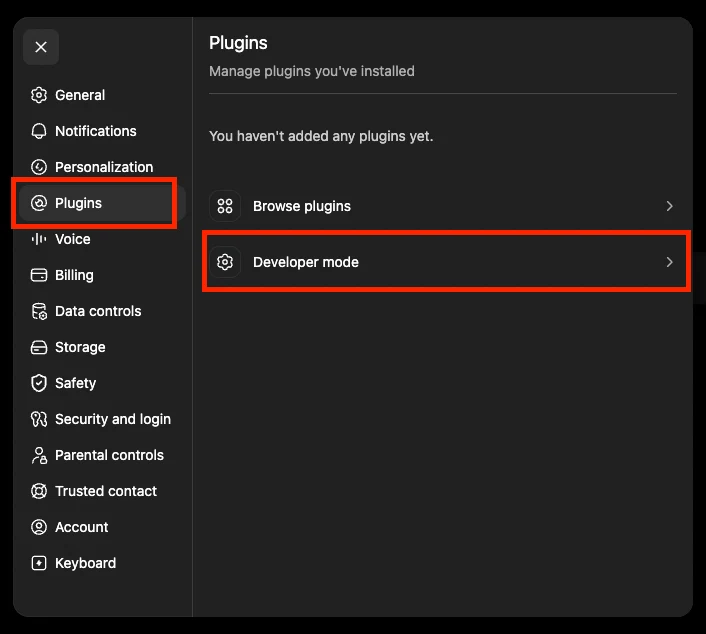
Go to Plugins
In the settings panel, click Plugins, then click Developer Mode within the Plugins section. This is where you manage external app integrations that connect ChatGPT to third-party data sources like ThoughtMetric.
-
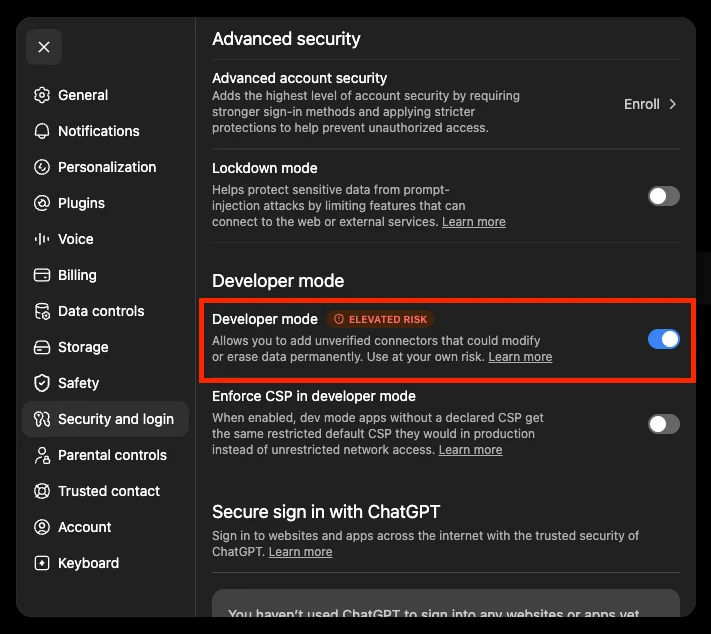
Enable Developer Mode
Toggle on Developer Mode to unlock the ability to add custom MCP integrations.
-
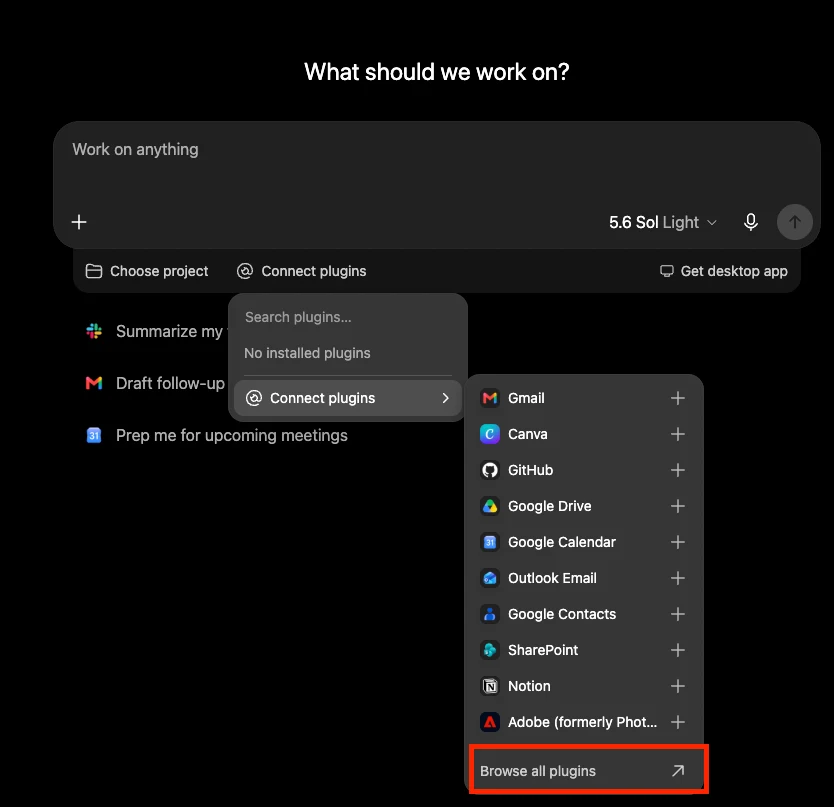
Browse all plugins
From your chat window, click Connect Plugins, then Browse All Plugins.
-
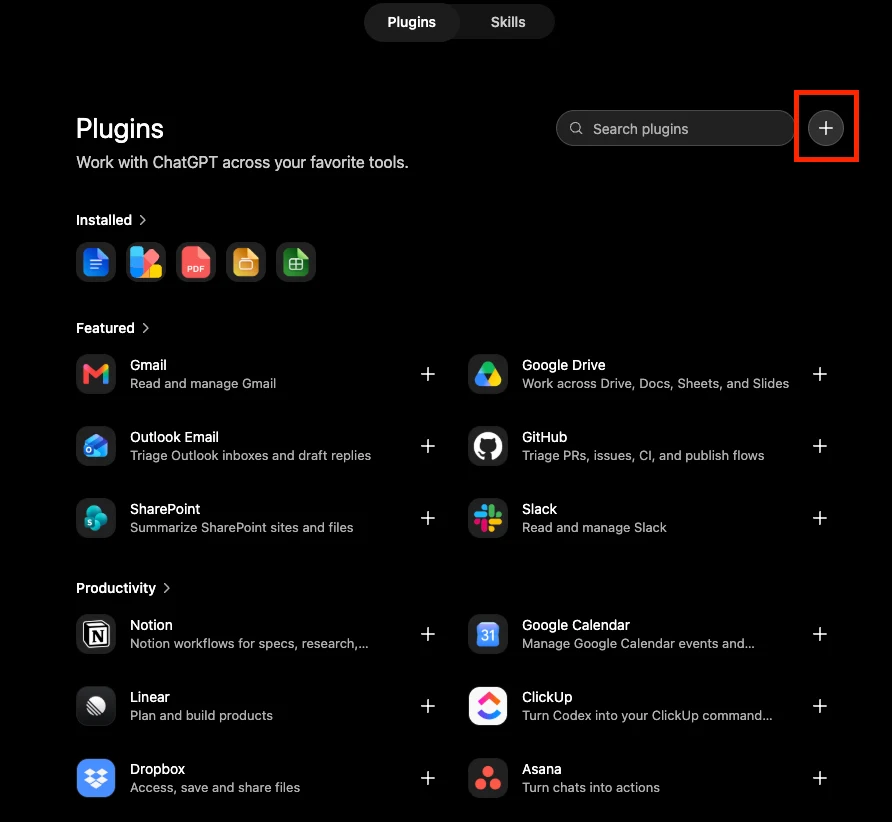
Create a new plugin
Click the plus button in the top right to create a new plugin.
-
Configure the ThoughtMetric connector
You are prompted to fill out the details for your new app:
- Name: enter a descriptive name, such as
ThoughtMetric. - Connection: enter the ThoughtMetric MCP endpoint URL,
https://thoughtmetric.io/mcp.
Once both fields are filled in, click Create to save the connector.
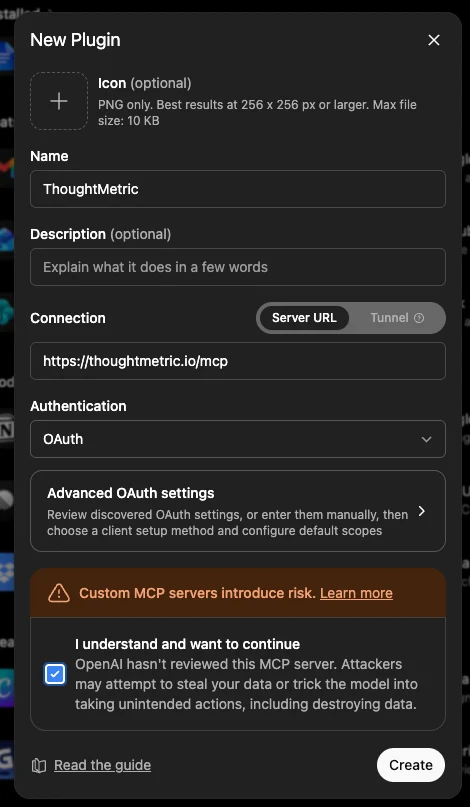
- Name: enter a descriptive name, such as
-
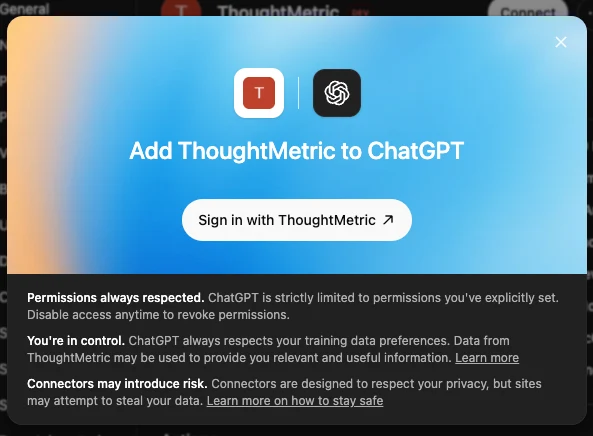
Confirm that you want to connect ThoughtMetric
A pop-up in ChatGPT asks if you want to add ThoughtMetric to ChatGPT. Click Sign in with ThoughtMetric.
-
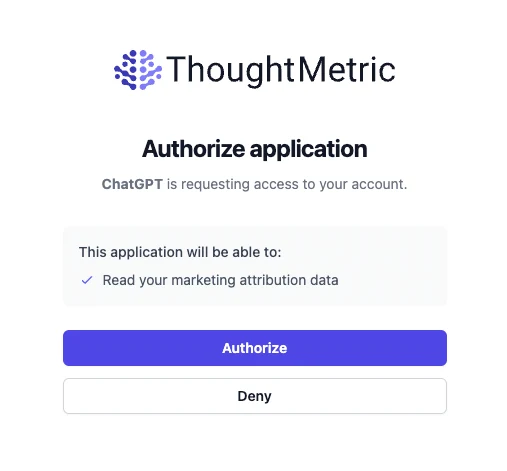
Authorize access
You are redirected to a ThoughtMetric authorization screen. Review the permissions being requested and click Authorize to grant ChatGPT secure access to your ThoughtMetric data. Once authorized, you are redirected back to ChatGPT.
-
Start asking questions
You're all set. You can now ask ChatGPT questions about your ThoughtMetric data in plain English. Here are some examples to get you started:
- "What were my total sales last week?"
- "Show me a breakdown of orders by channel for the past 30 days."
- "Which campaigns had the highest ROAS this month?"
- "Compare my spend across channels for January vs. February."
- "What are my top-selling products this week?"
ChatGPT queries your ThoughtMetric data in real time and returns the results directly in the conversation.
Troubleshooting
If the connector isn't working as expected, try the following:
- Verify that the MCP URL is entered correctly as
https://thoughtmetric.io/mcp, with no trailing spaces. - Make sure Developer Mode is enabled in your Apps settings. The connector won't work without it.
- Re-authorize the connection by removing the app and going through the setup process again.
- Check that you've selected the app in your chat. Remember to click the "+" button and choose ThoughtMetric before asking questions.
- Check your ThoughtMetric account to make sure your projects are active and receiving data.
- If issues persist, reach out to ThoughtMetric support for assistance.