
Ad platforms
Connect Bing Ads
Sync ad spend and campaign performance from Microsoft Advertising.
Connect the Bing Ads integration to track your spend, ROI, and campaign performance.
Connect your Bing Ads account
-
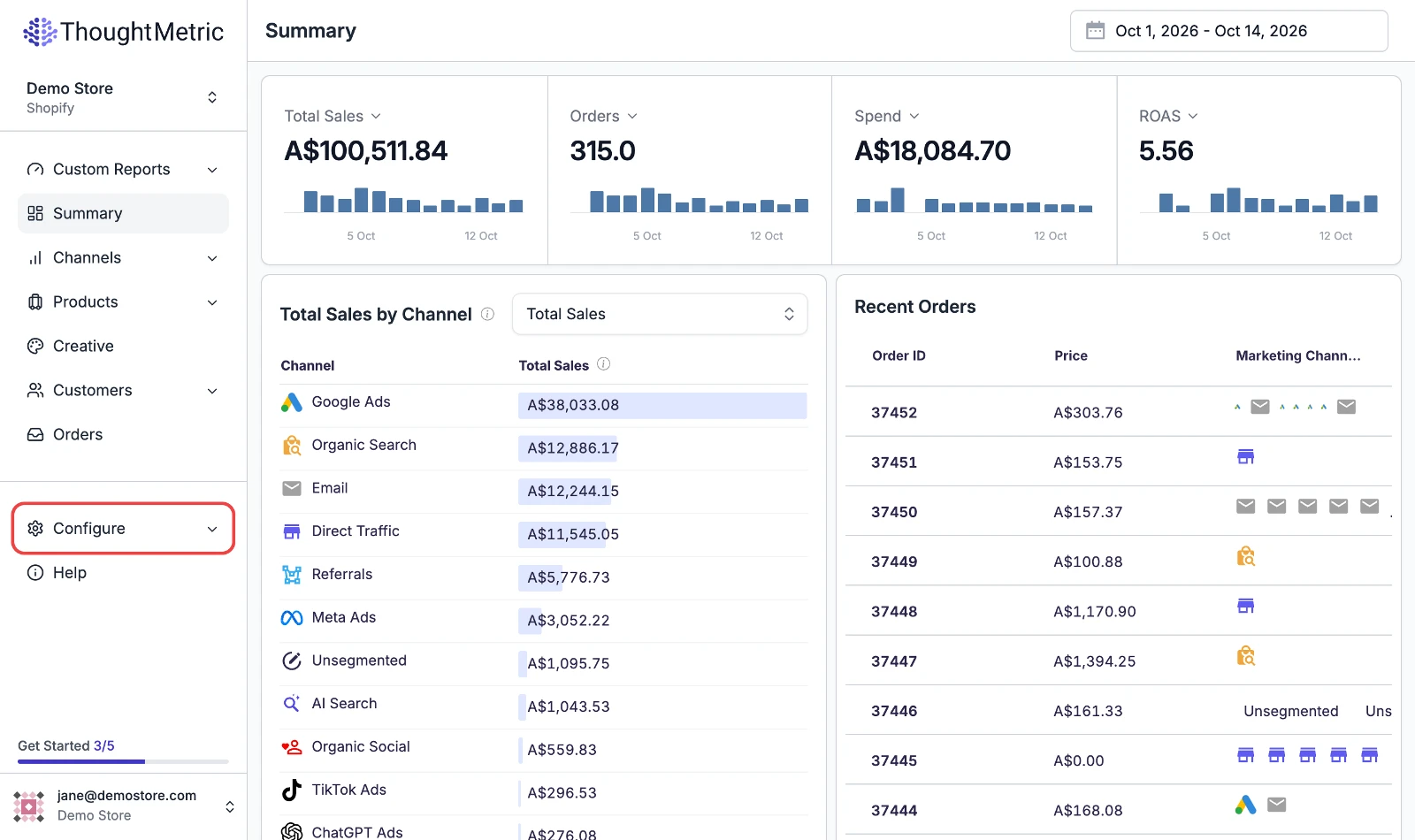
Open Configure
Navigate to Configure in the left-side navigation menu.
-
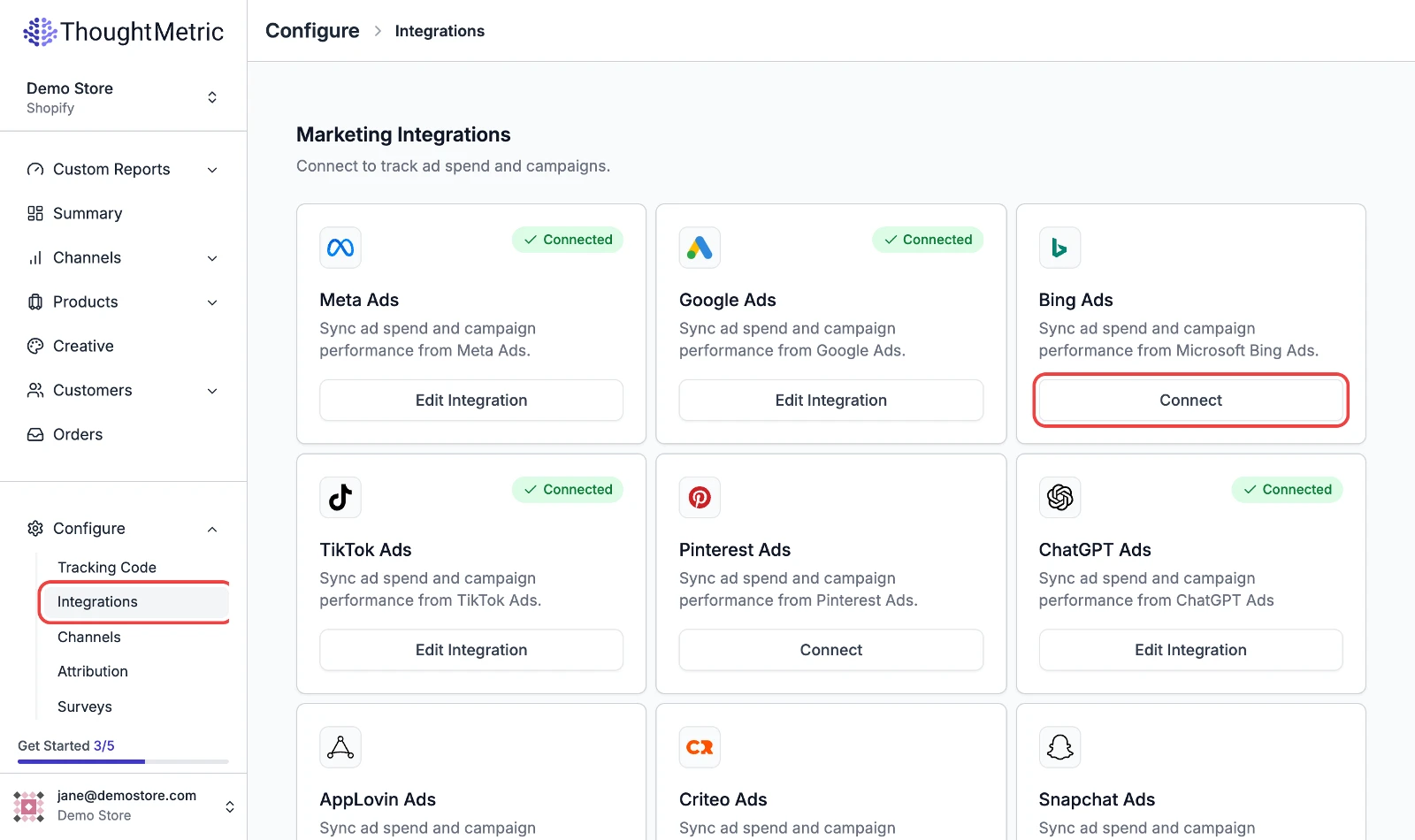
Start the Bing Ads connection
Select Integrations and then click Connect on the Bing Ads card.
-
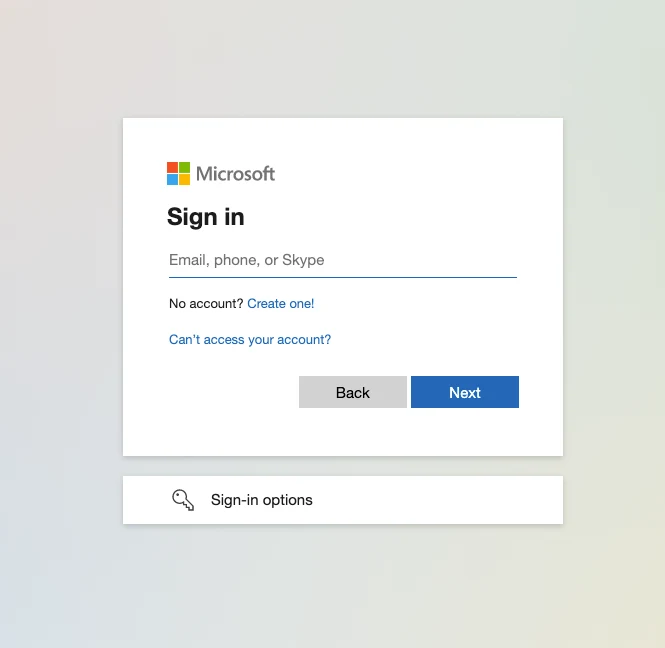
Sign in with Microsoft
You are redirected to a Microsoft authentication flow. Sign in with the Microsoft account that is associated with your Bing Ads account.
Add tracking parameters to your ads
For the most accurate tracking of Bing Ads, place the ThoughtMetric tracking parameter on your Bing Ads.
ThoughtMetric Bing Ads tracking parameter:
{lpurl}?tmsrc=bingad&tmcid={CampaignId}&tmsid={AdGroupId}&tmid={AdId}&tmkw={keyword:default}-
Copy the ThoughtMetric tracking parameter.
-
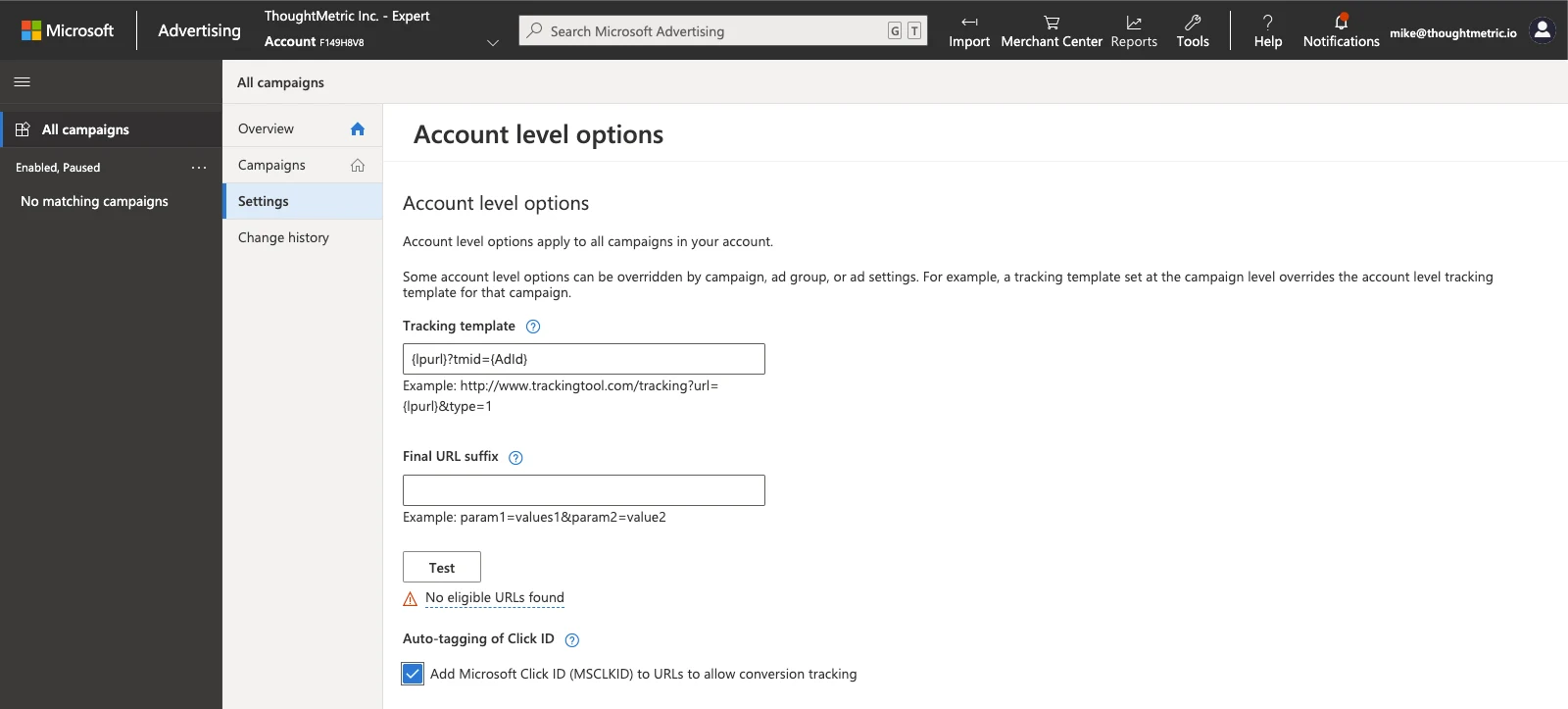
Open the account-level options
Go to the Bing Ads website. From the collapsible menu on the left, select All campaigns → Settings → Account level options.
-
Paste the ThoughtMetric tracking parameter into the Tracking Template box.
-
Enable the Auto-tagging of Click ID checkbox.
-
Click Save.
If your tracking template already has parameters
If you already have tracking parameters in the tracking template field, you can use the ThoughtMetric tracking parameters in addition to the tracking you already have in place.
Append the ThoughtMetric parameters to the end of your existing UTM string with an & symbol, starting with the tmsrc parameter.
For example, if your tracking template already contains this text:
{lpurl}?utm_source=bingAppend the ThoughtMetric tracking parameters so that the end result looks like this:
{lpurl}?utm_source=bing&tmsrc=bingad&tmcid={CampaignId}&tmsid={AdGroupId}&tmid={AdId}&tmkw={keyword:default}