
Ad platforms
Connect ChatGPT Ads
Sync ad spend and campaign performance from ChatGPT Ads.
Connect the ChatGPT Ads integration to track your spend, ROI, and campaign performance.
Connect your ChatGPT Ads account
-
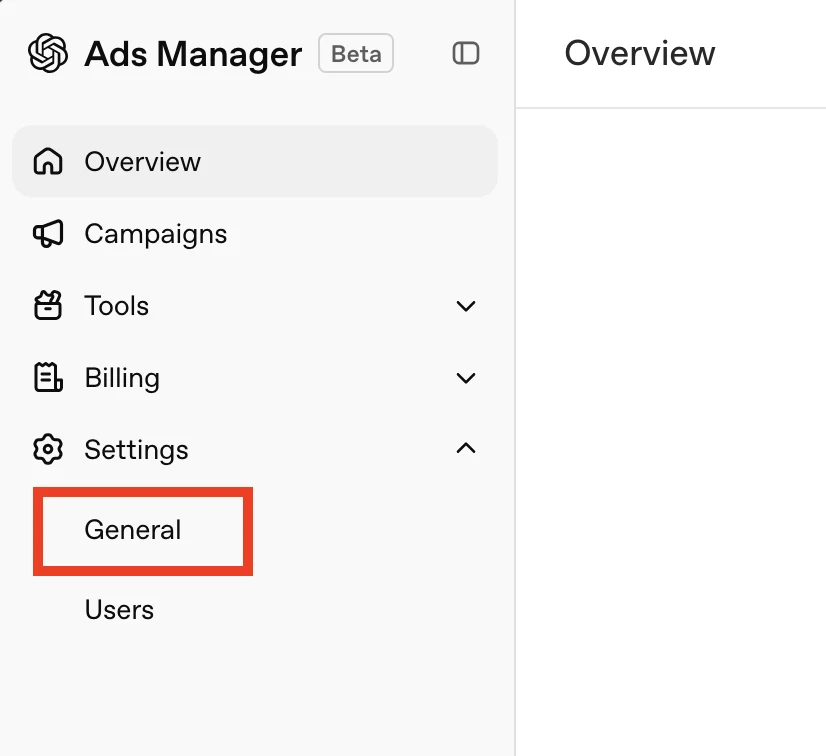
Open the general settings in Ads Manager
Log in to OpenAI's Ads Manager, click Settings, and then click General underneath it.
-
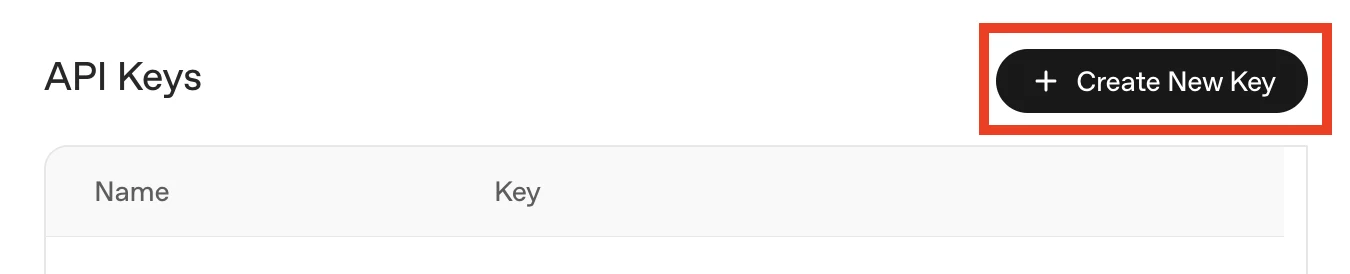
Create a new API key
In the API Keys section, click Create New Key.
-
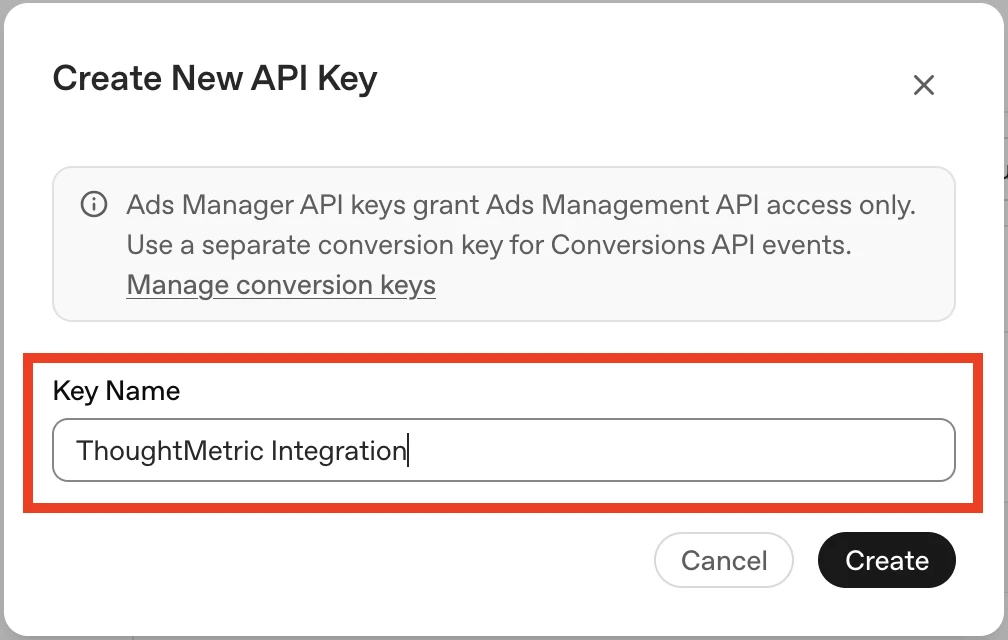
Name the key
Give the key a name. We recommend something like "ThoughtMetric Integration" to indicate what the key is used for. Then click Create.
-
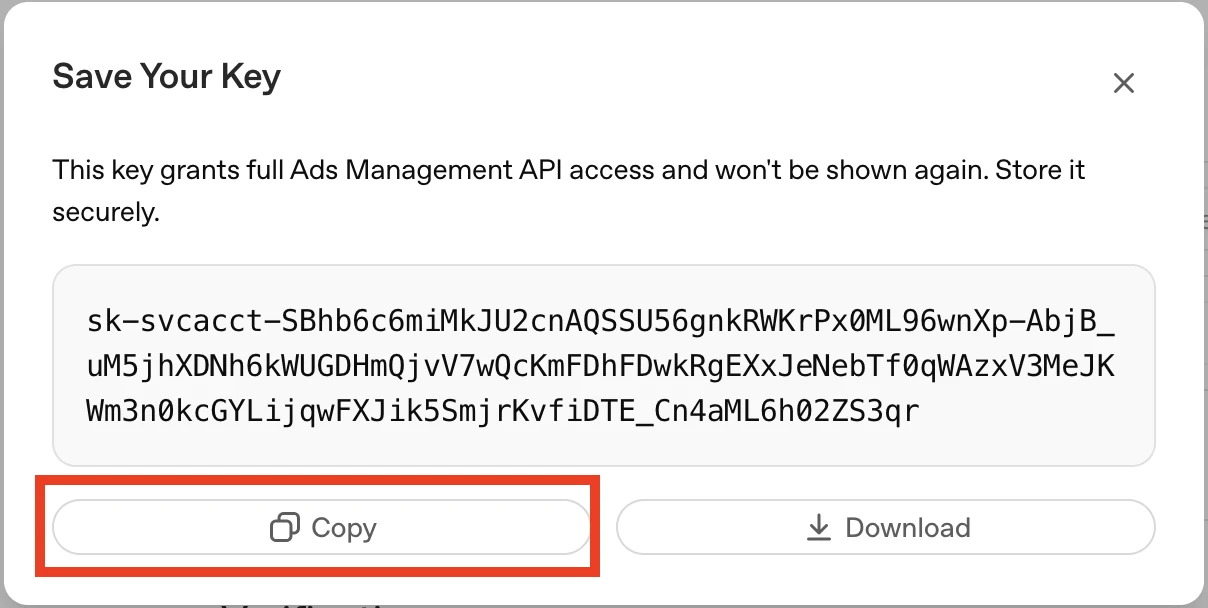
Copy the key
The new key is displayed. Press Copy to save the key to your clipboard.
Leave this tab or window open until you have successfully saved the key in ThoughtMetric. You cannot retrieve the key again once it has been closed.
-
Open Configure in ThoughtMetric
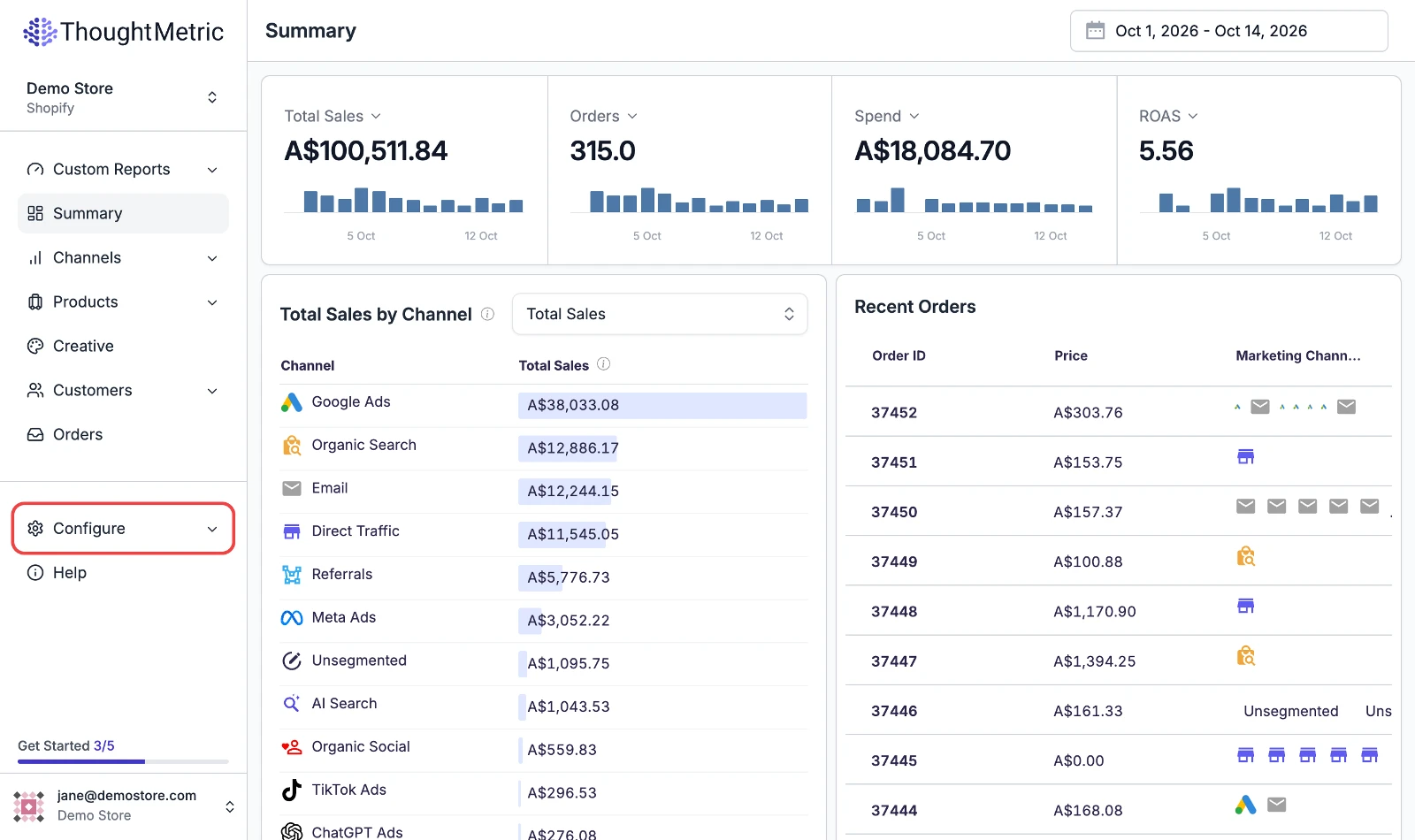
Navigate to Configure in the left-side navigation menu.
-
Start the ChatGPT Ads connection
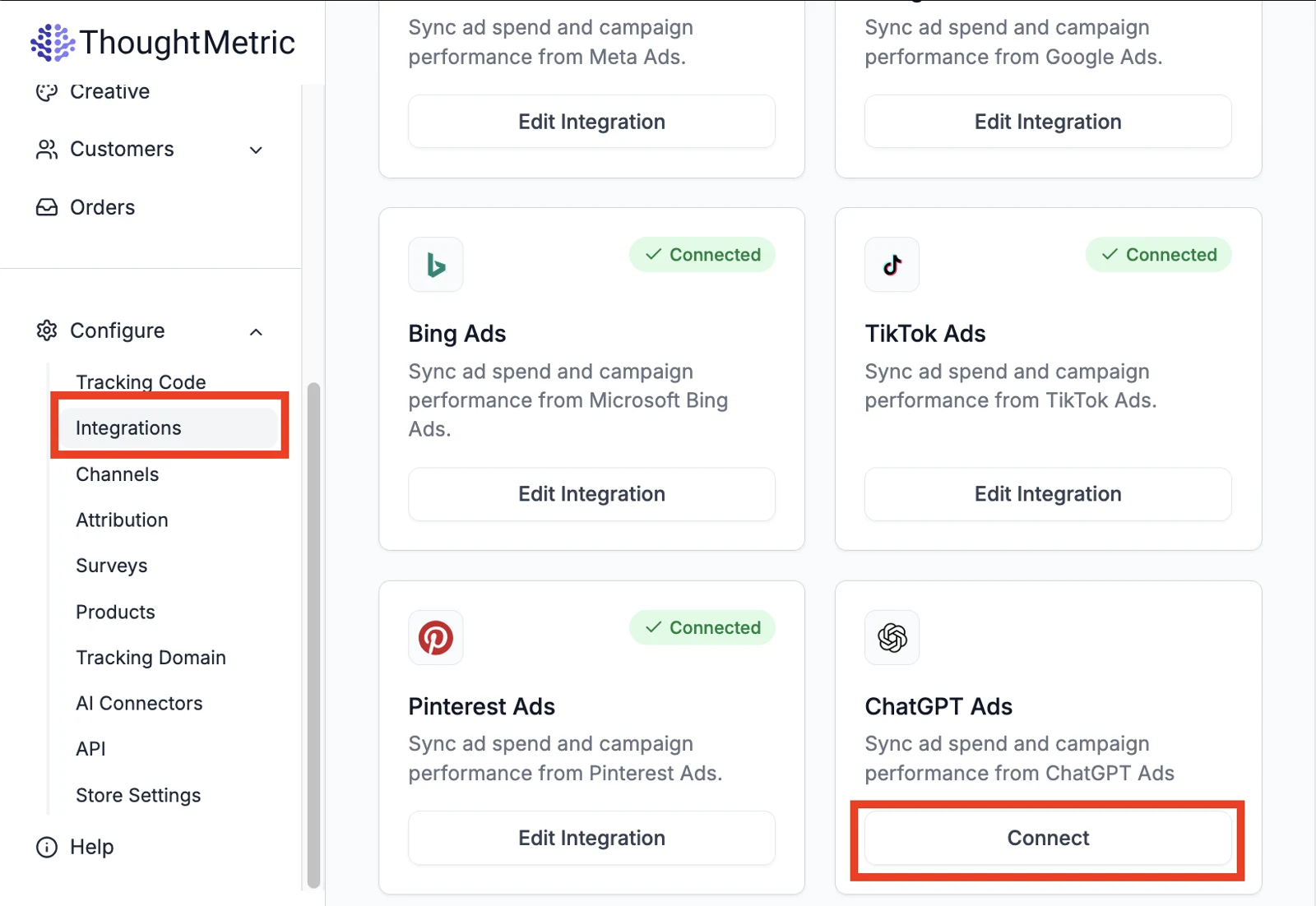
Select Integrations and then click Connect under ChatGPT Ads.
-
Paste your API key
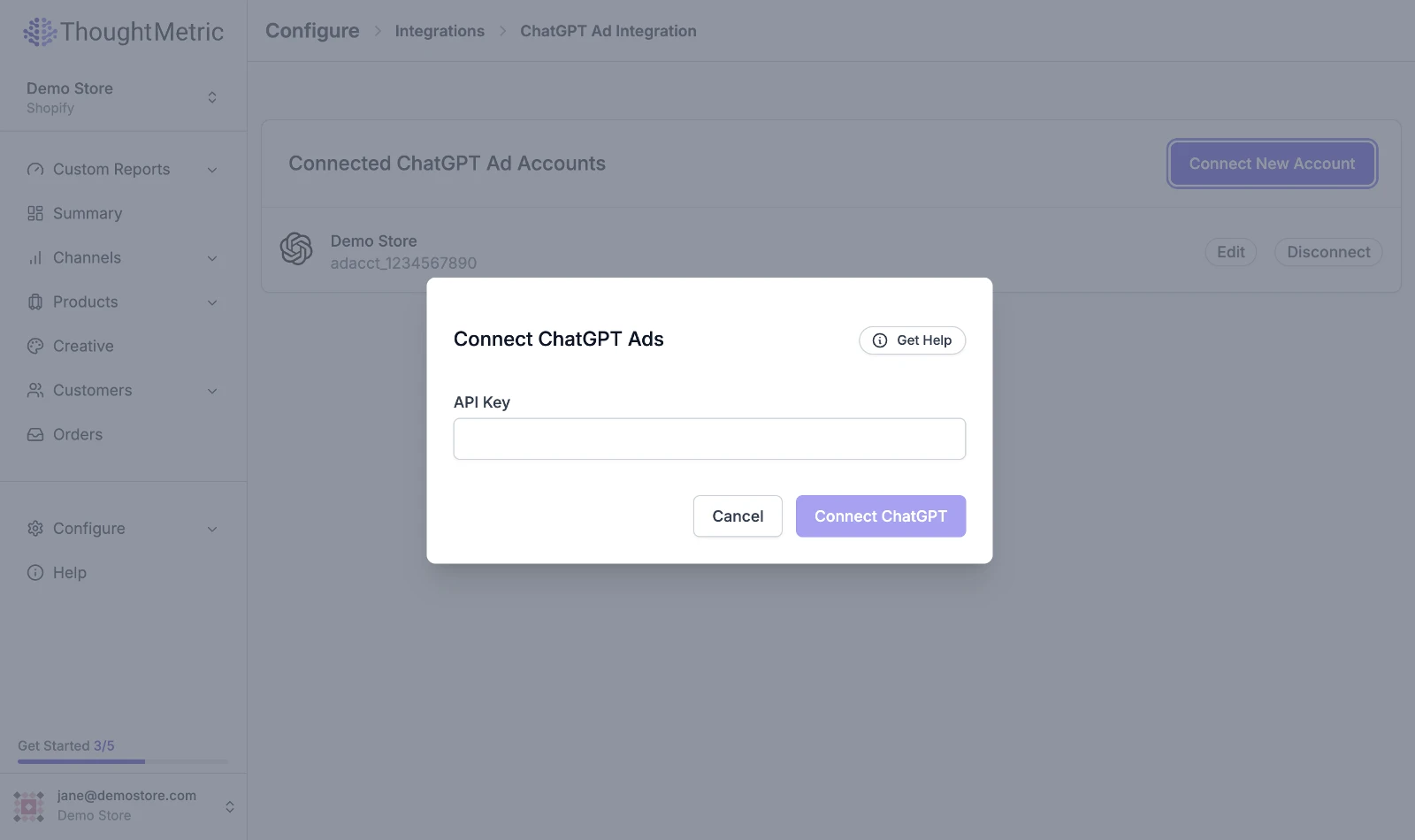
A popup appears, prompting you for your ChatGPT Ads API key. Paste the key you copied, then press Connect ChatGPT.
-
Confirm the connection
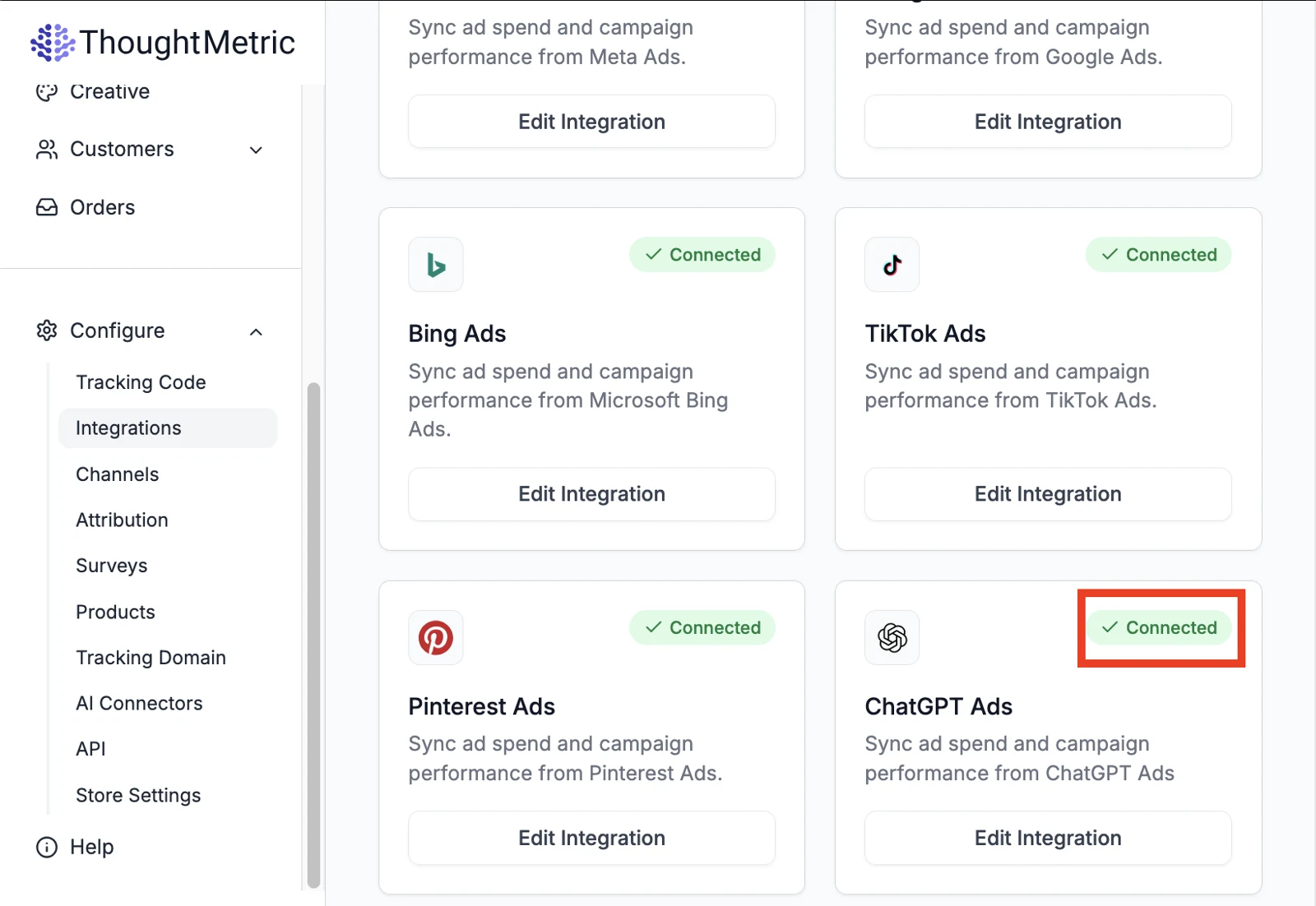
ThoughtMetric validates your key with ChatGPT Ads. If validation succeeds, the integration shows as Connected. Otherwise, an error such as "invalid_api_key" is displayed.
Connect multiple ChatGPT Ads accounts
You can connect more than one ChatGPT Ads account to your ThoughtMetric account.
-
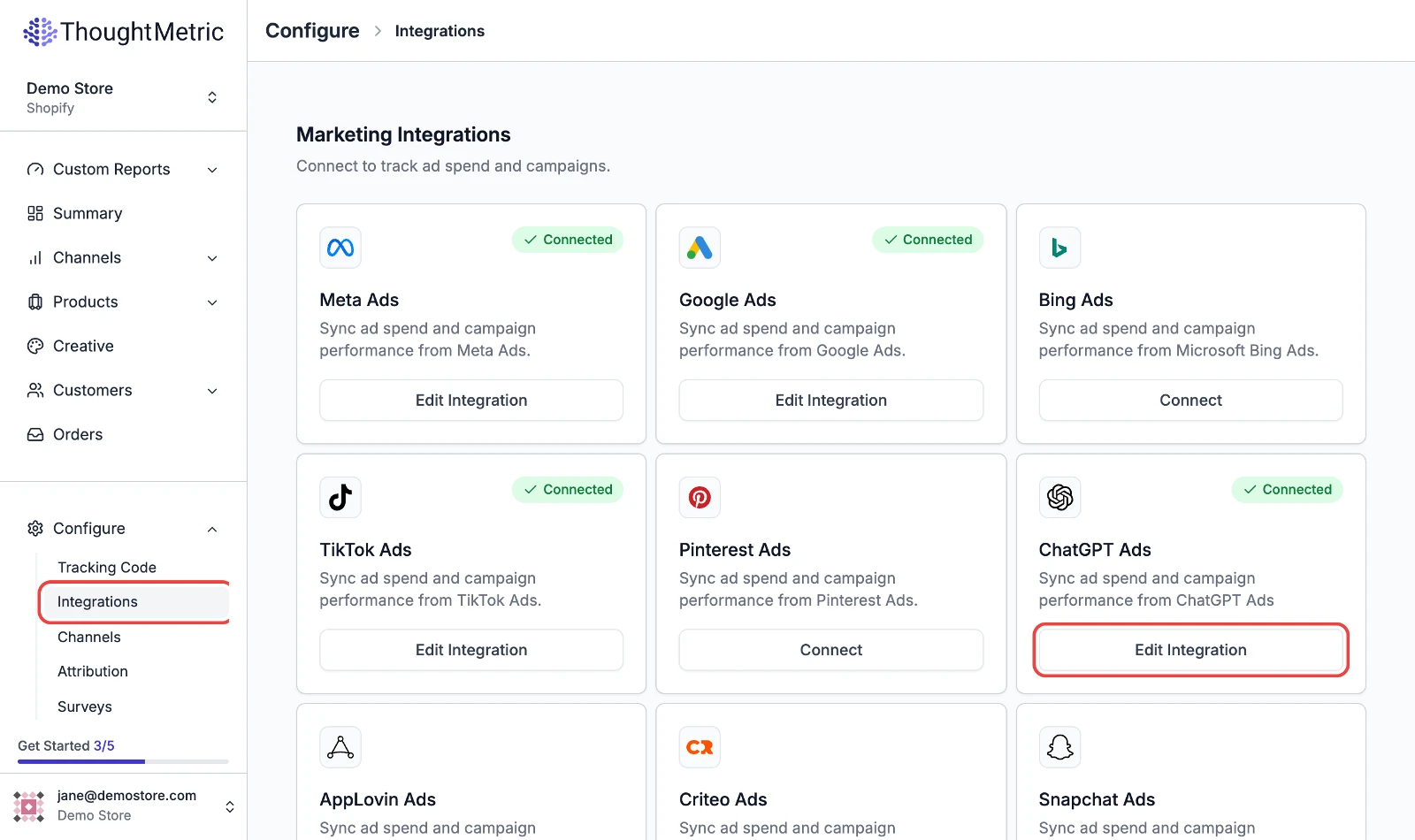
Edit the integration
Navigate to the Integrations page and click Edit Integration on the ChatGPT Ads integration.
-
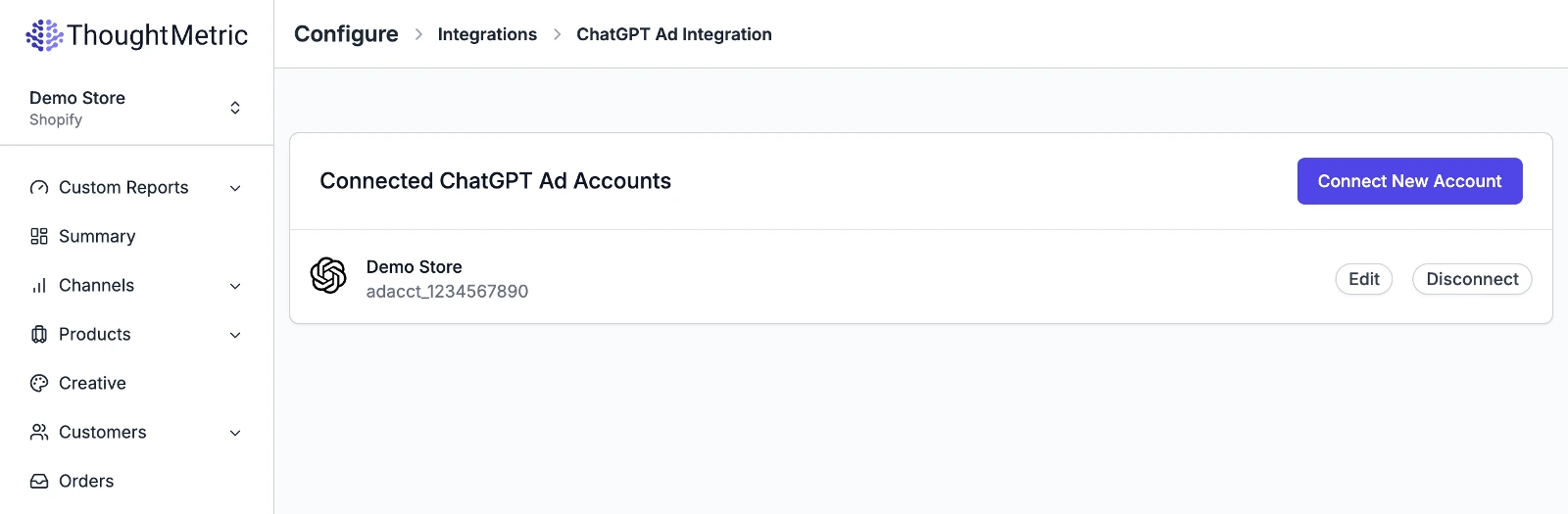
Add or remove accounts
You are taken to a page that shows all of the ChatGPT Ads accounts you currently have connected. Click the Connect New Account button to add a new account, or click the Disconnect buttons to remove old accounts.
Add tracking parameters to your ads
For the most accurate tracking of ChatGPT Ads, place the ThoughtMetric tracking parameters on your ChatGPT Ads.
ThoughtMetric ChatGPT Ads tracking parameter:
tmsrc=chatgptad&tmcid={campaign_id}&tmsid={ad_group_id}&tmid={ad_id}
-
Copy the ThoughtMetric tracking parameter.
-
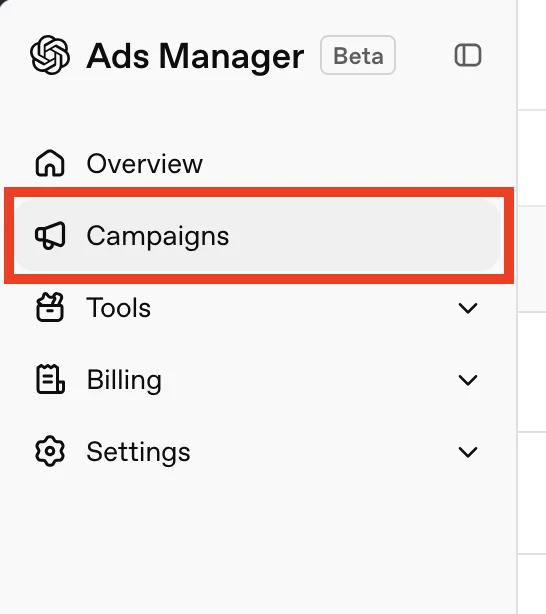
Open your campaigns
Click Campaigns in the Ads Manager sidebar.
-
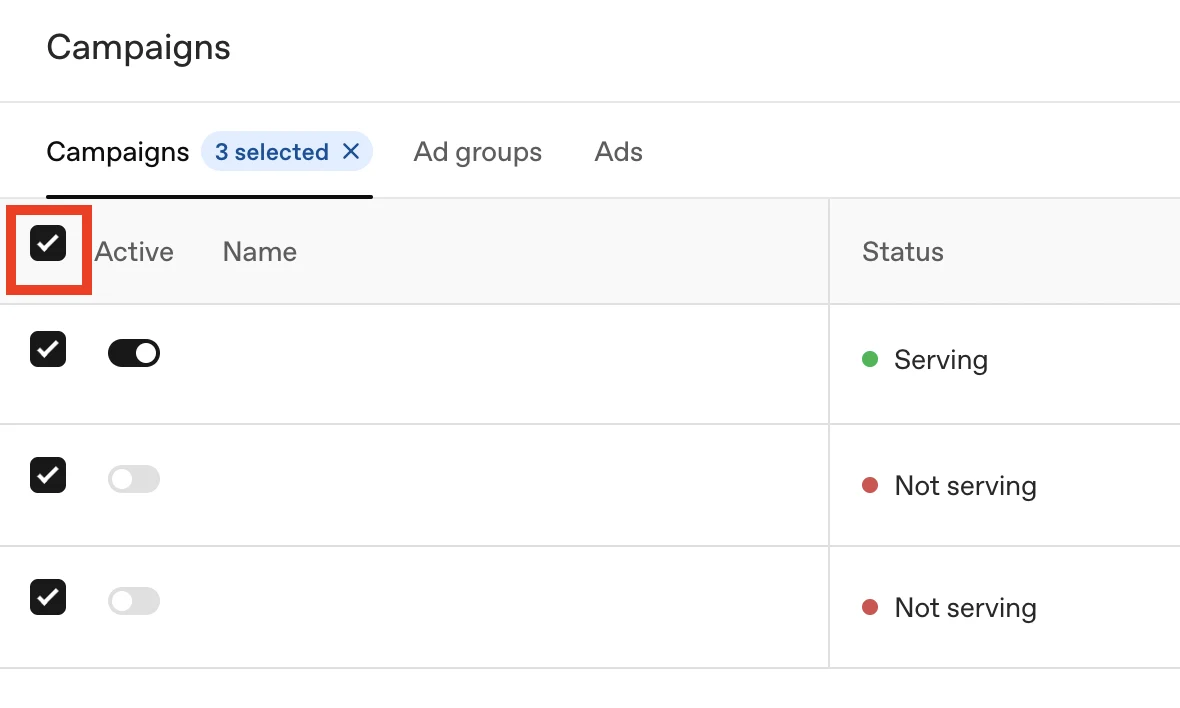
Select the campaigns to update
Select the applicable ad campaign(s), or check the box indicated to select all campaigns.
-
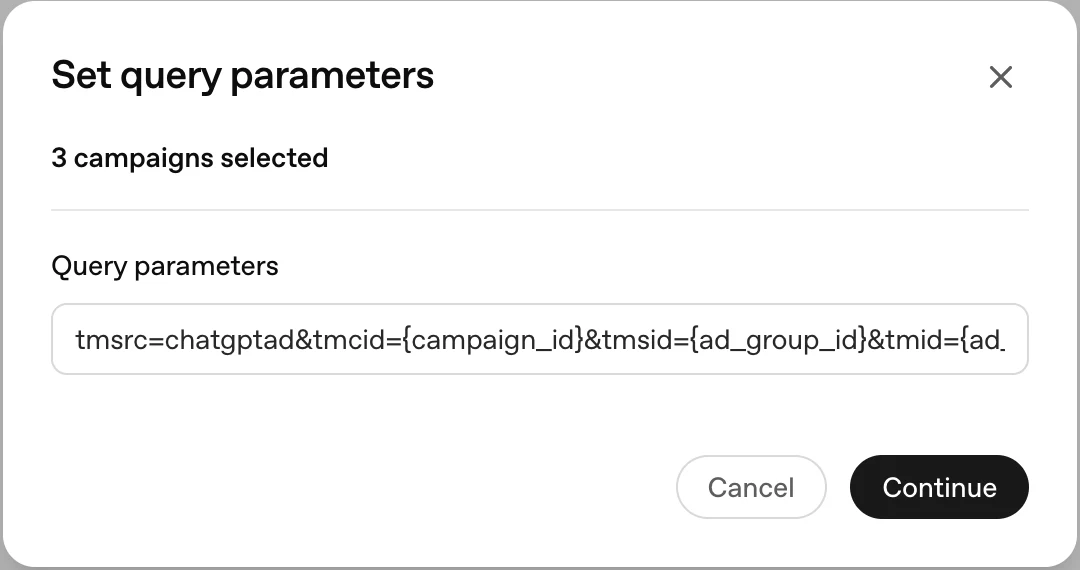
If more than one campaign is selected, set the query parameters
From the Edit menu, select Set query parameters.
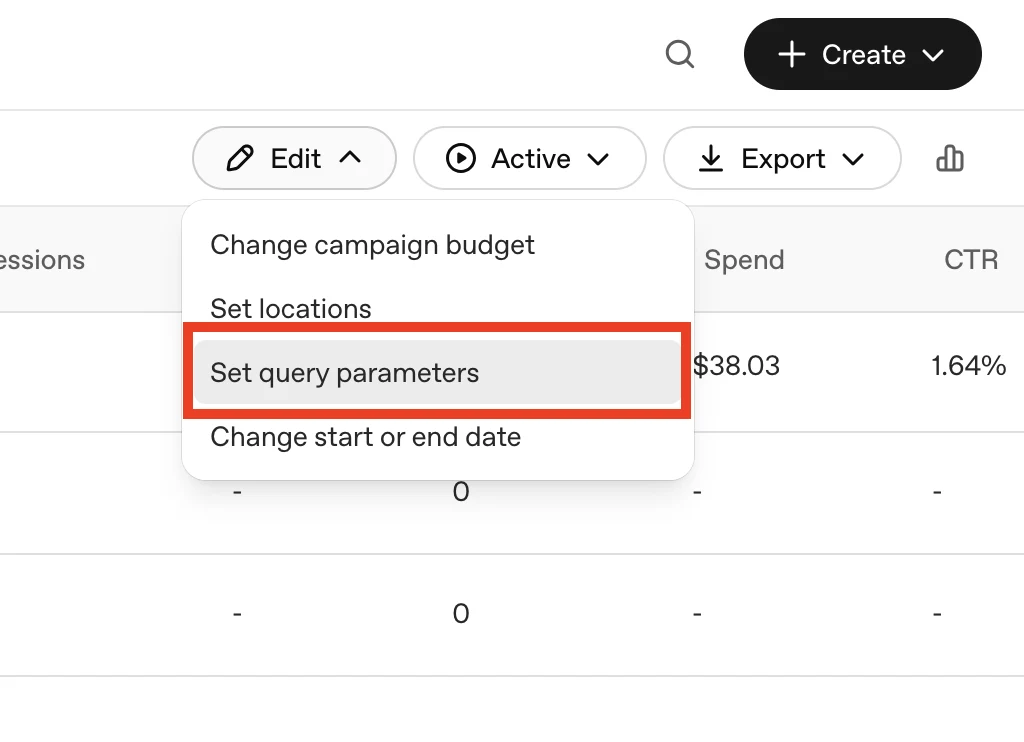
Paste the ChatGPT Ads tracking parameter into the field and click Continue.
-
If only one campaign is selected, edit the campaign
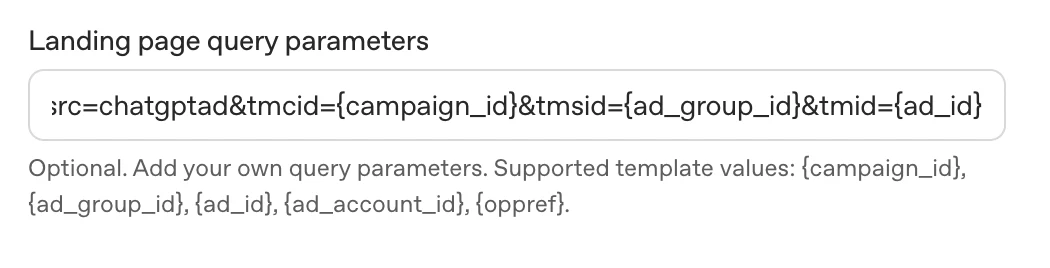
Click the Edit button itself. In the resulting popup, paste the ChatGPT Ads tracking parameter into the Landing page query parameters field and then click Save.
If your tracking template already has parameters
If you already have tracking parameters in the tracking template field, you can use the ThoughtMetric tracking parameters in addition to the tracking you already have in place.
Append the ThoughtMetric parameters to the end of your existing UTM string with an & symbol, starting with the tmsrc parameter.
For example, if your tracking template already contains this text:
utm_source=openai
Append the ThoughtMetric tracking parameters so that the end result looks like this:
utm_source=openai&tmsrc=chatgptad&tmcid={campaign_id}&tmsid={ad_group_id}&tmid={ad_id}