
Surveys
Add surveys to WooCommerce
Add the post-purchase survey to a WooCommerce checkout.
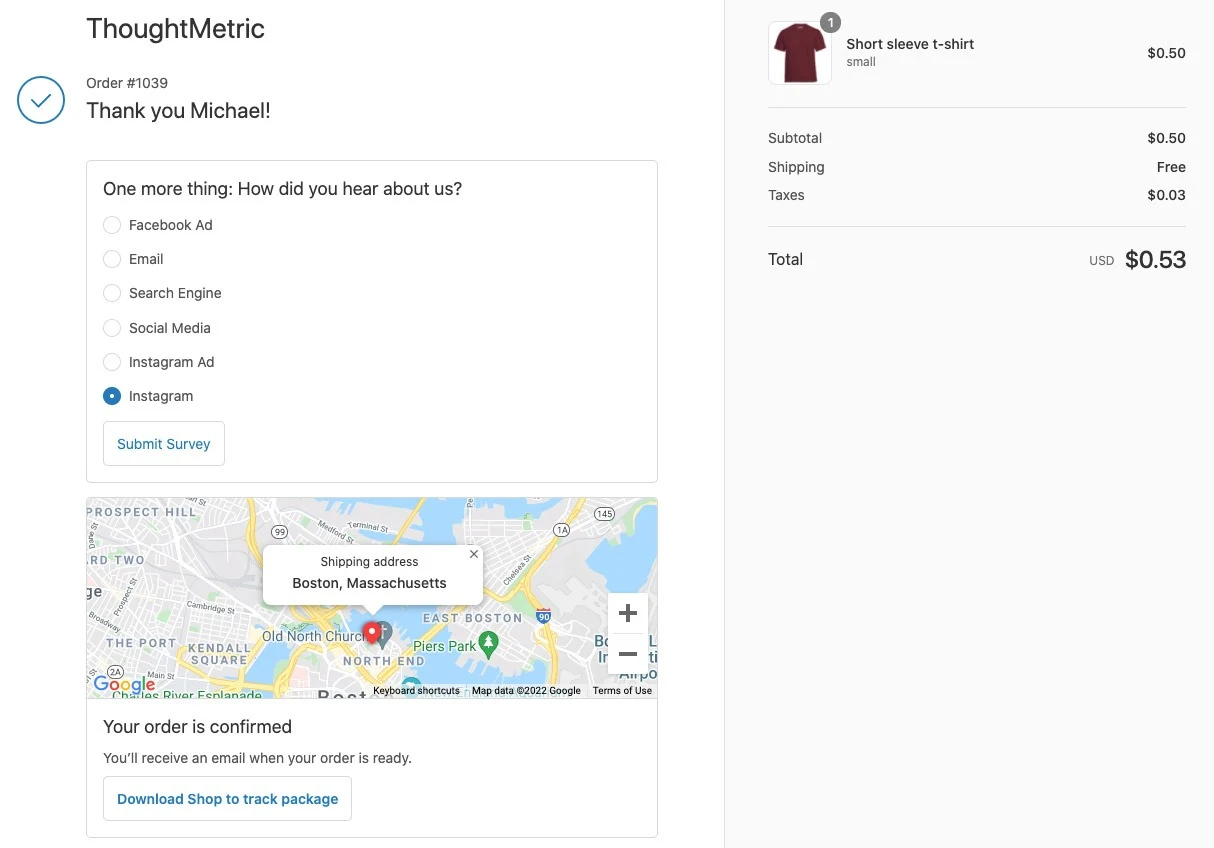
You can collect additional attribution data directly from your customers by enabling ThoughtMetric's post-purchase "How did you hear about us?" survey. Once configured, ThoughtMetric inserts a simple survey into your store's post-checkout page asking your customers how they first heard about your store. The survey results are factored into the ThoughtMetric attribution model behind the scenes to increase data accuracy and fill in blind spots.
ThoughtMetric inserts the survey into your store's normal post-checkout page.
Before you start
The ThoughtMetric pixel handles most of the heavy lifting when it comes to rendering the survey and handling the survey responses, so you need to have the pixel installed on your site before you can render the survey. For WooCommerce, this means having the ThoughtMetric plugin installed and configured. If you haven't done that yet, follow the installation instructions.
Add the survey to your post-checkout page
-
Add the HTML snippet to the page
The first step is to add a snippet of HTML code that tells ThoughtMetric where you want to position the survey on the page. Add the following HTML snippet to your post-checkout page:
<div id="thought_survey"></div> -
Style the survey
The survey comes mostly unstyled and by default will probably not match your custom site. Add some CSS styles to your page to help the survey match the styling of your site. Below are some default styles to help you get started.
<style>
#thought_survey {
width: 400px;
margin-top: 5px;
margin-left: auto;
margin-right: auto;
}
#tm_question {
font-size: 19px !important;
}
#tm_thank {
font-size: 19px !important;
}
.tm_response {
padding-top: 3px !important;
padding-bottom: 3px !important;
}
#tm_submit {
padding: 7px !important;
}
</style>