
Account and settings
Two factor authentication
Protect your login with a code from an authenticator app.
Two factor authentication (2FA) adds a second step when you sign in: after your password, you enter a 6-digit code from an authenticator app on your phone. It protects your account even if your password is stolen.
2FA is set per user, not per organization. Each teammate turns it on for their own login.
Before you start
Install an authenticator app such as Google Authenticator, 1Password or Authy on your phone.
Enable two factor authentication
-
Open the account menu
Click your account button at the bottom of the left-side nav, then click Two Factor Authentication under Personal Settings.
-
Scan the QR code
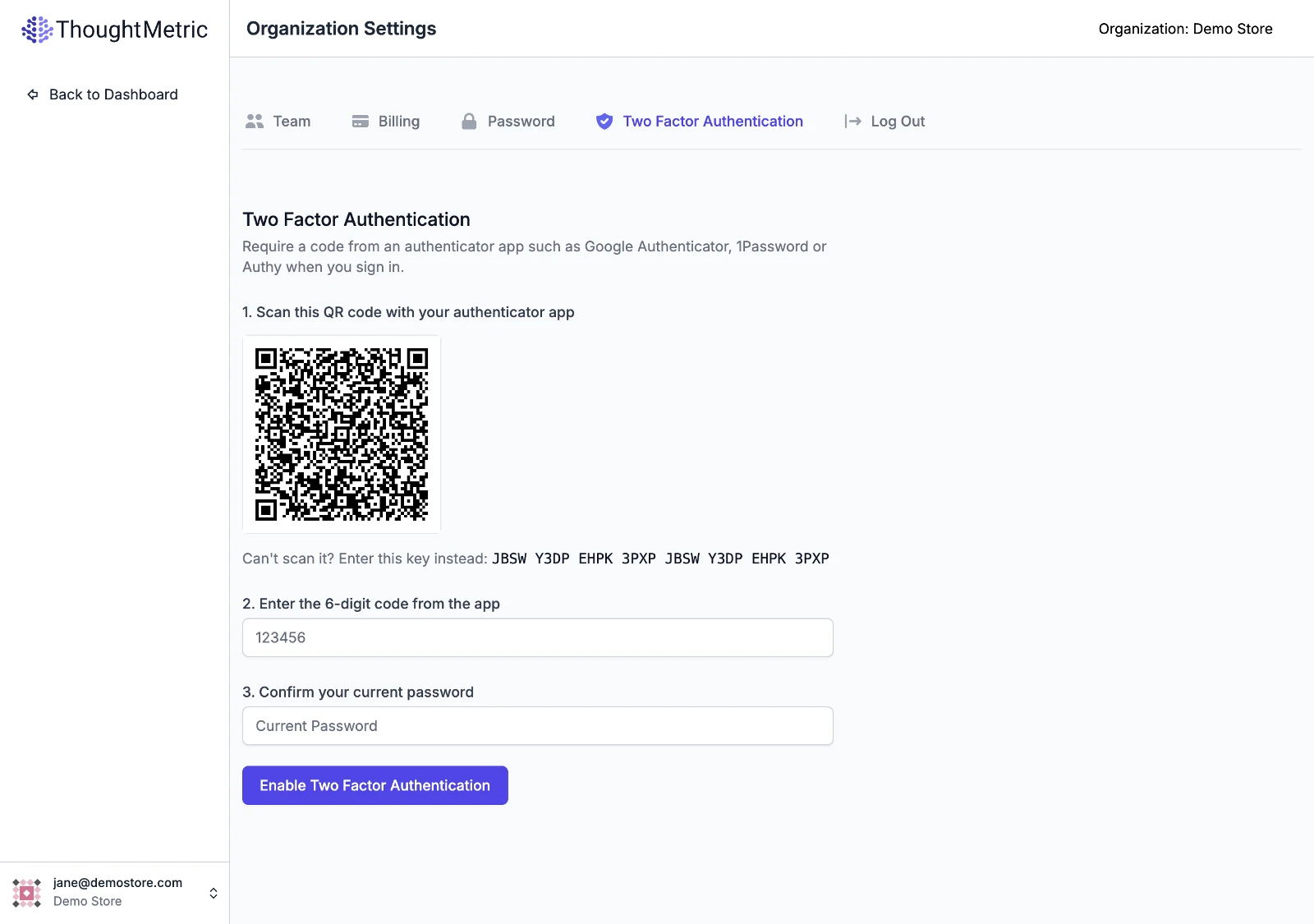
Open your authenticator app, add a new account, and scan the QR code shown on the page. If you can't scan it, type the key shown beneath the QR code into the app instead.
-
Enter the 6-digit code
Your authenticator app now shows a 6-digit code for ThoughtMetric. Type it into the code field.
-
Confirm your password
Enter your current ThoughtMetric password, then click Enable Two Factor Authentication.
-
Save your backup codes
ThoughtMetric shows a set of backup codes. Each one can be used once to sign in if you lose access to your authenticator app. Store them somewhere safe, such as a password manager.
The backup codes are only shown once, right after you enable 2FA. Save them before you leave the page.
Signing in with two factor authentication
Sign in with your email and password as usual. ThoughtMetric then asks for an authentication code: enter the current 6-digit code from your authenticator app, or one of your backup codes, and click Verify.
Disable two factor authentication
Open the Two Factor Authentication page again. It shows that 2FA is enabled and how many backup codes you have left. Enter your current password and click Disable Two Factor Authentication.
Lost access to your authenticator app?
Sign in with one of your backup codes in place of the 6-digit code. If you have no backup codes left, email support@thoughtmetric.io and we can reset two factor authentication on your account.