
Account and settings
Add a user
Invite a teammate to your ThoughtMetric account.
You can invite colleagues or clients to your ThoughtMetric account by following the steps below.
Invite a user
-
Open the account menu
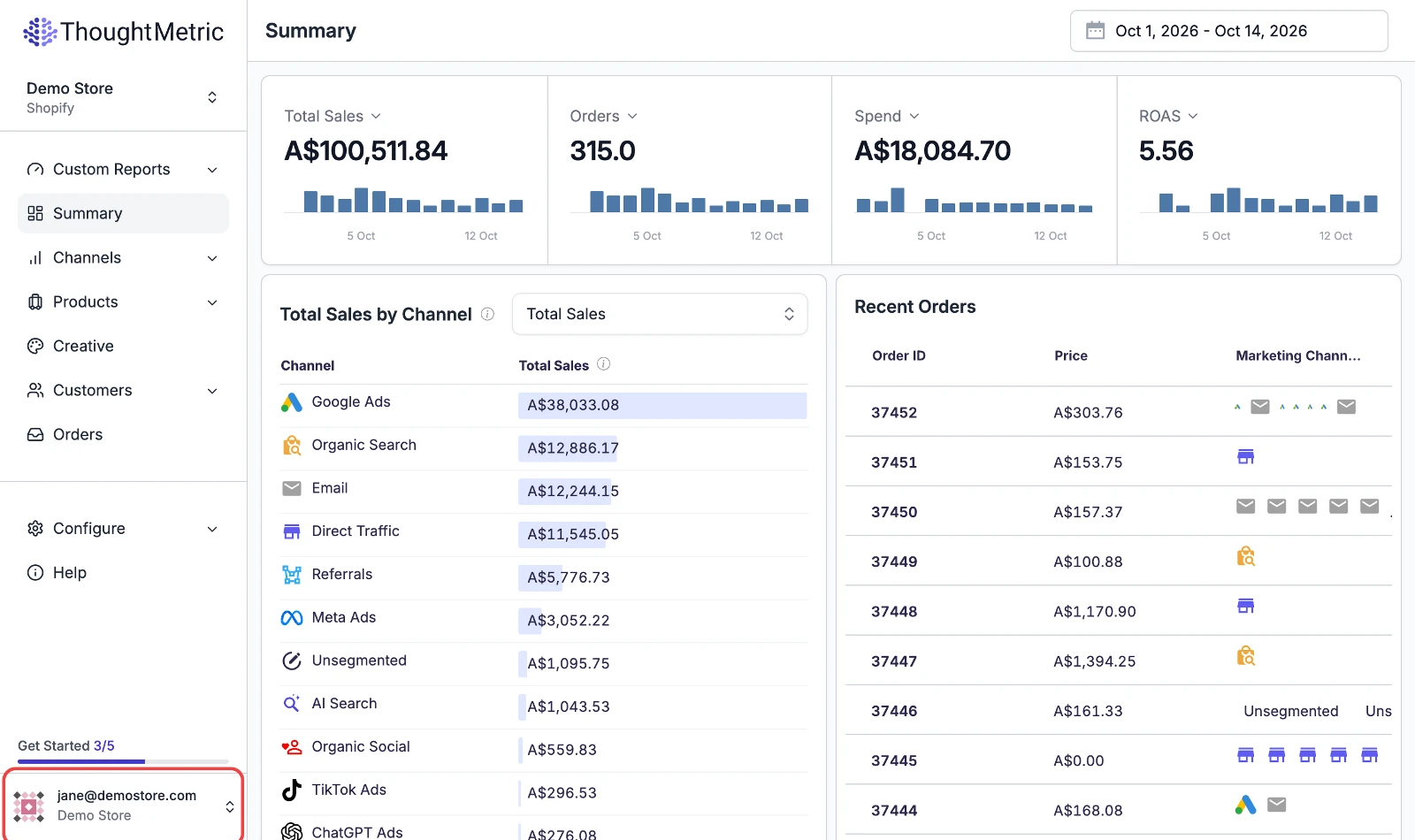
Click your account button at the bottom of the left-side nav.
-
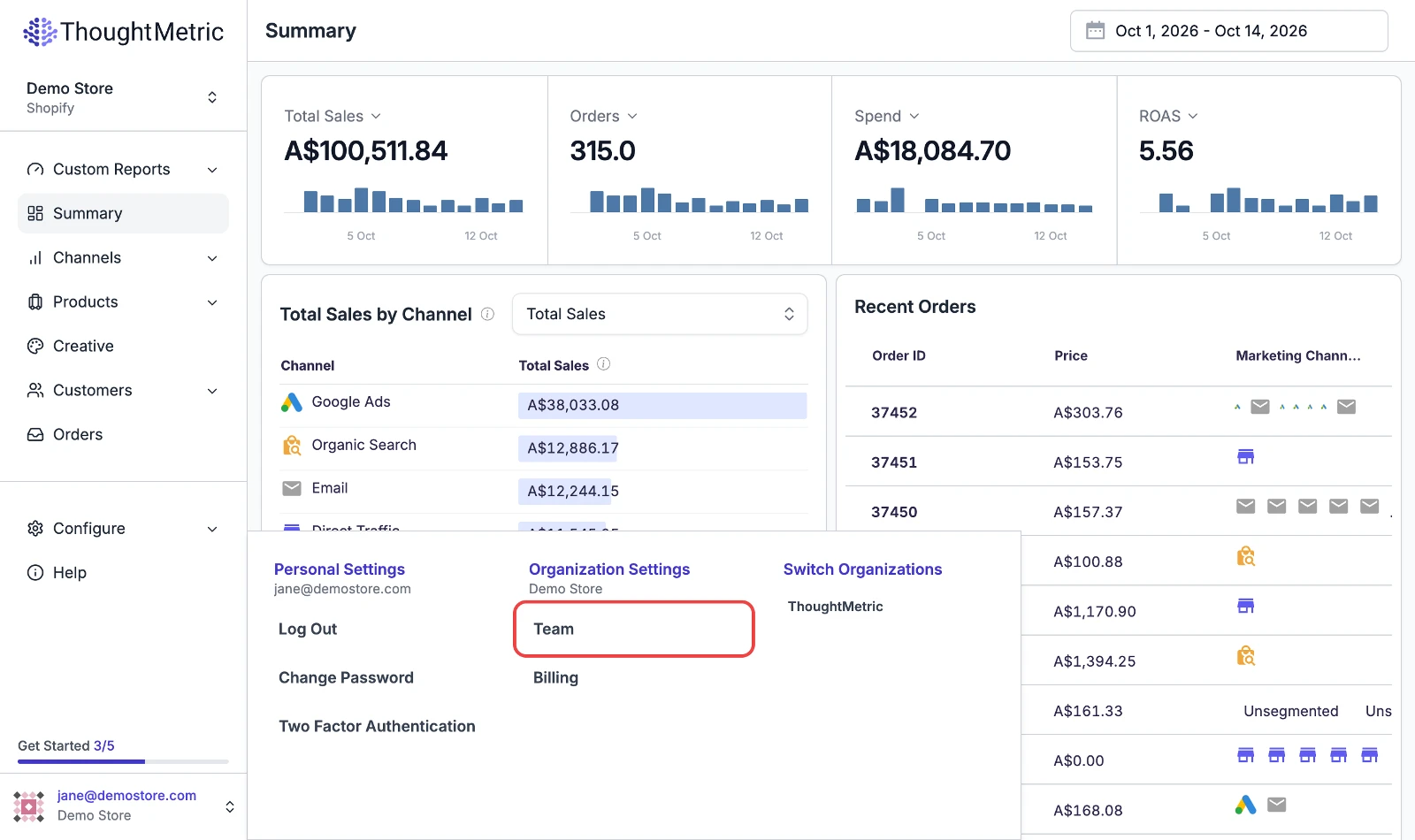
Click Team under Organization Settings.
-
Send the invitation
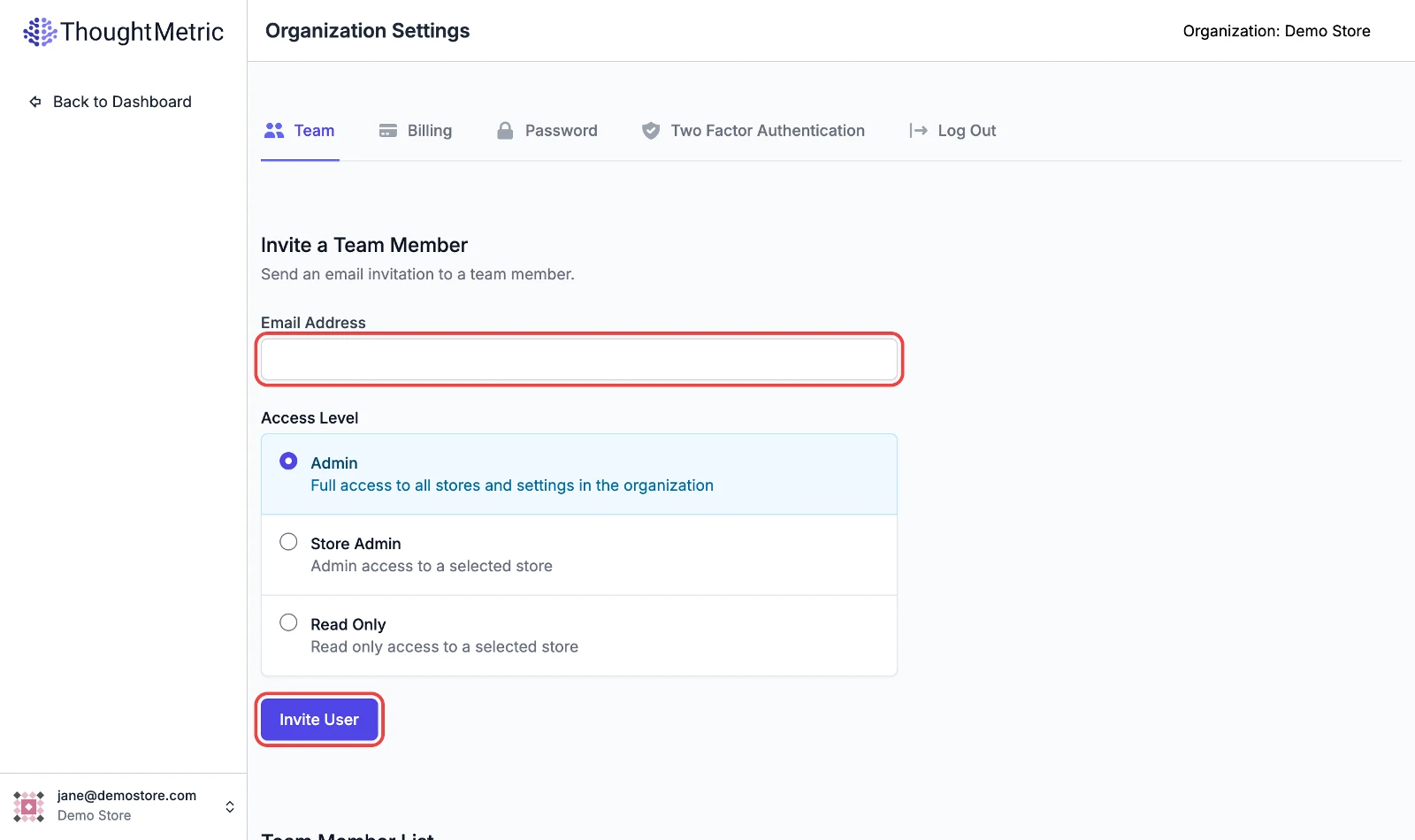
Invite other people by providing their email and user access level. A user can have one of three access levels:
- Admin
- Store Admin
- Read Only
Access levels
Admin
Admin is the default user access level. It gives users permission to:
- Access and edit ThoughtMetric billing plans.
- Add, edit, and delete stores in the organization.
- Invite and delete users.
Store Admin
When you choose Store Admin, you also select which store in the larger organization the invited user can administer.
A Store Admin can:
- Edit the attributes of stores assigned to the user.
- Add, edit, and delete assigned store channels.
A Store Admin cannot:
- Access and edit ThoughtMetric billing plans.
- Add or delete stores, even if the stores are assigned to the user.
- Invite or delete users.
Read Only
When you choose Read Only, you must also select which store in the larger organization the invited user has access to. A Read Only user cannot edit anything in ThoughtMetric. This means a Read Only user cannot:
- Pay for and subscribe to different ThoughtMetric SaaS subscription plans.
- Add or delete stores, even if the stores are assigned to the user.
- Invite or delete users.
- Edit the attributes of stores assigned to the user.
- Add, edit, or delete assigned store channels.