Account and settings
Edit a user
Change a teammate's access level or remove them from your account.
Editing a user lets you change the user's permissions or delete the user. You can only do this if you have Admin privileges.
-
Open your account
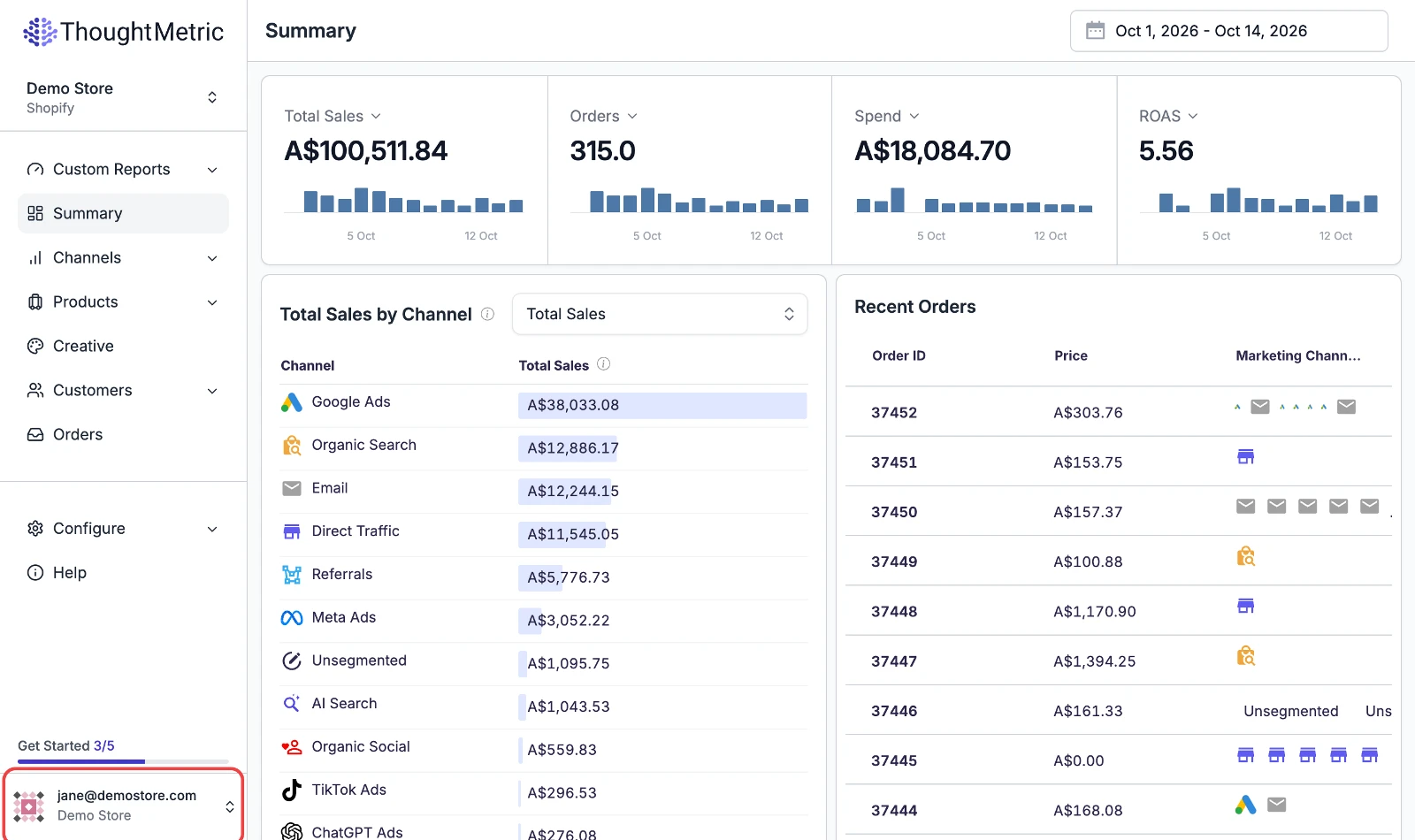
Click on your account at the bottom of the left-side nav.
-
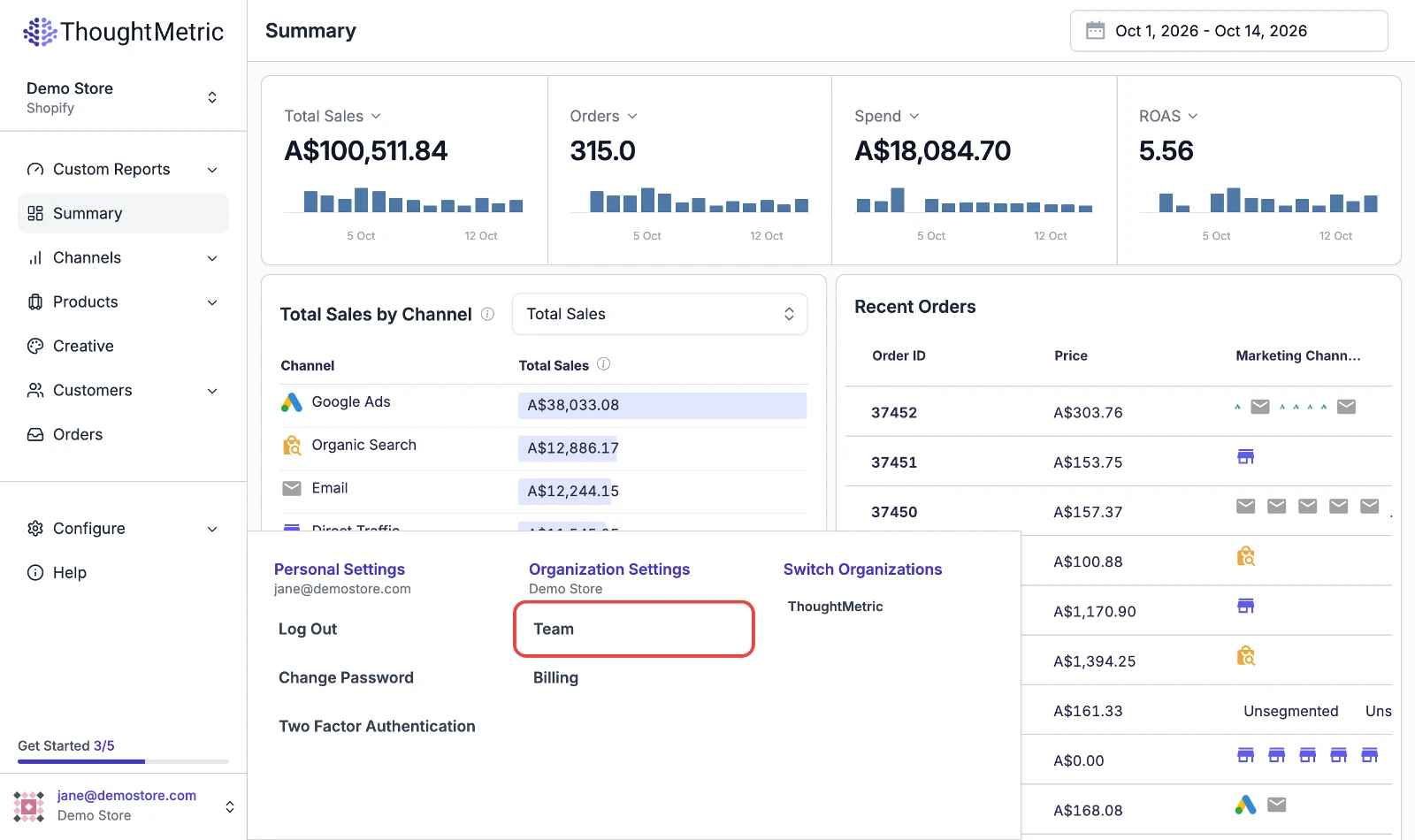
Click Team under Organization Settings.
-
Open the user's edit popup
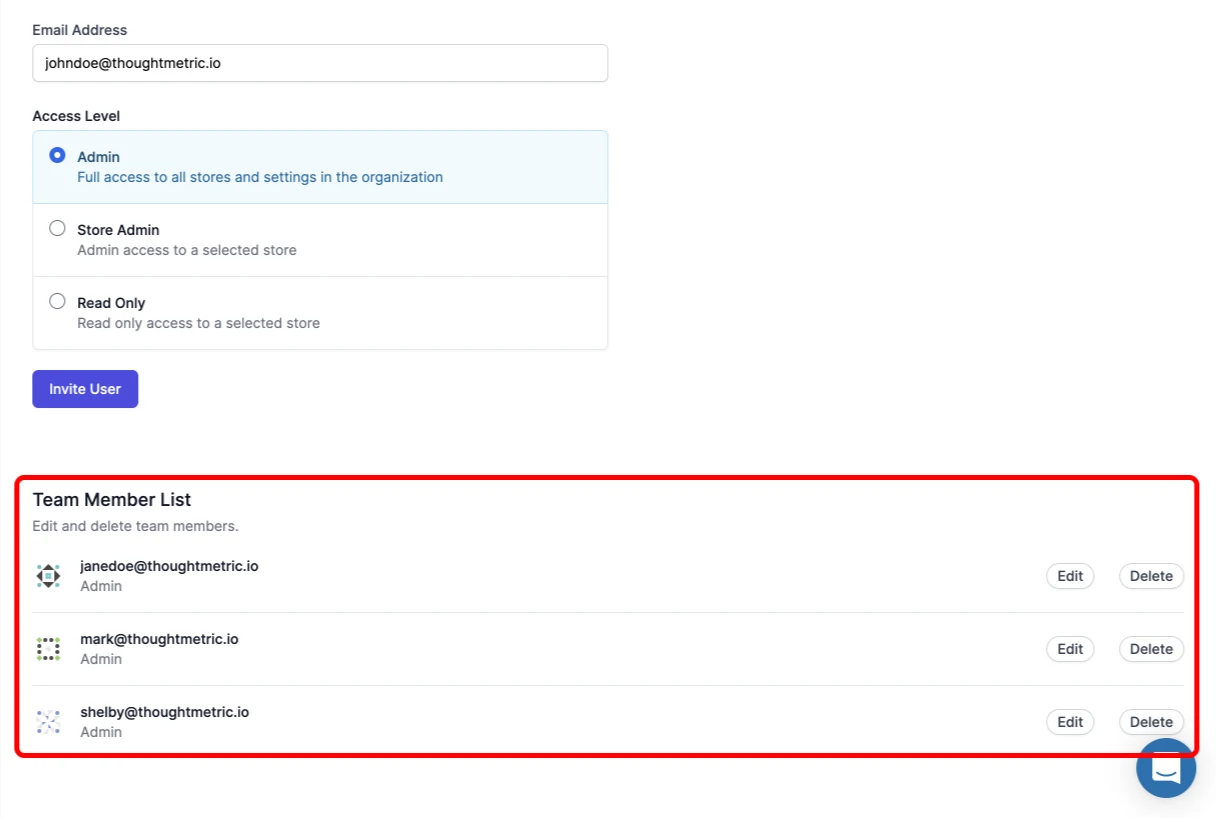
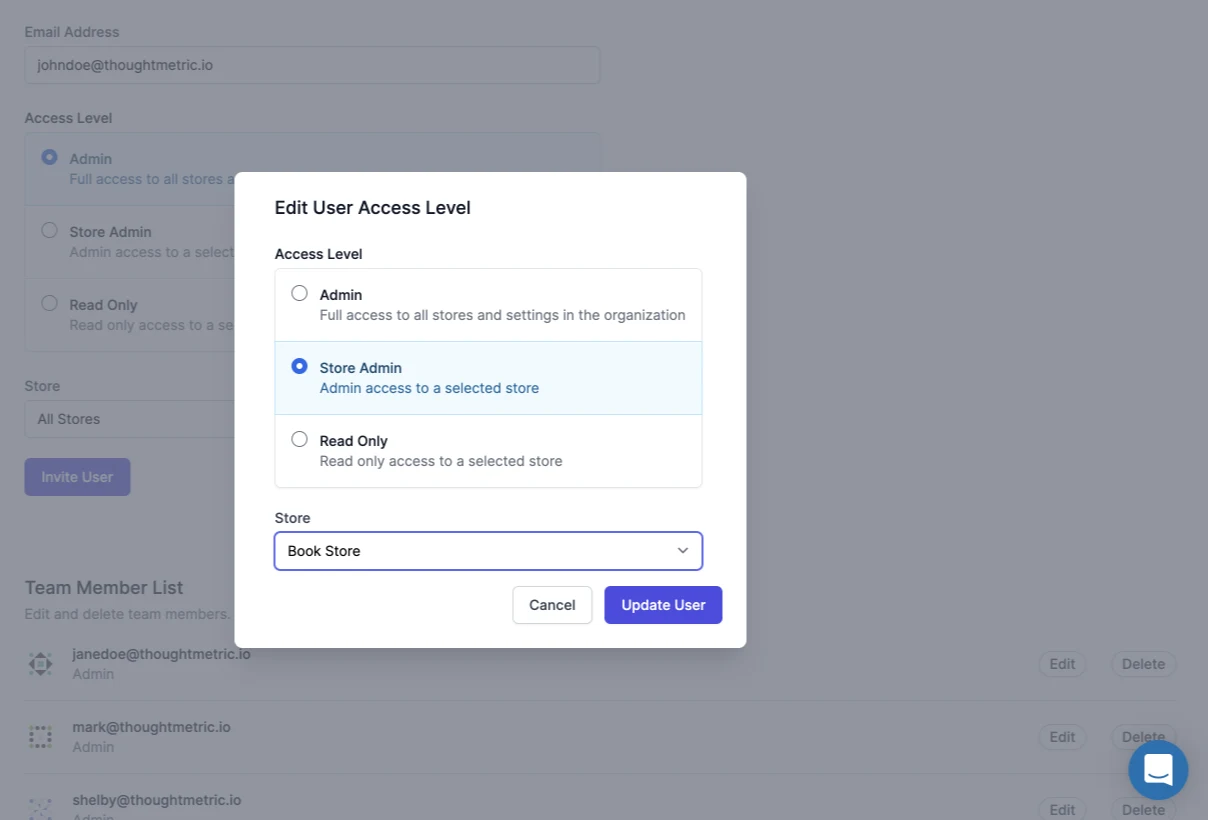
Go to the Team Member List section of the page and click a user's edit button. This opens a popup where you can change the user's permissions.
-
Change the user's permissions
Changing the user's permissions allows or disallows that user from changing particular fields in the store and organization, inviting users, changing users, and so on.
-
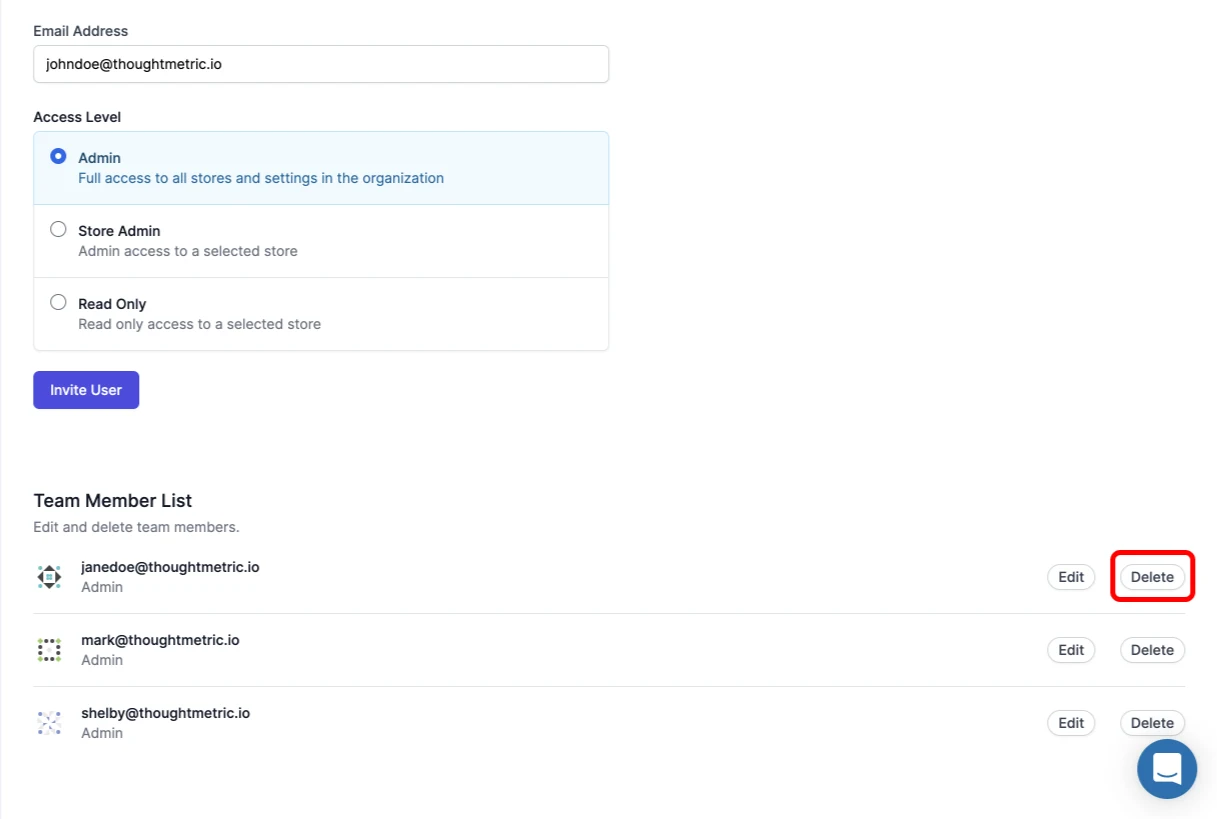
Delete the user
Deleting a user means that the user will no longer be a part of, or have access to, ThoughtMetric.