
Ad tracking parameters
ChatGPT Ads tracking parameters
Add ThoughtMetric tracking parameters to your ChatGPT ads.
For the most accurate tracking of your ChatGPT Ads, add the ThoughtMetric tracking parameters to your ChatGPT Ads by following this guide.
Tracking parameter
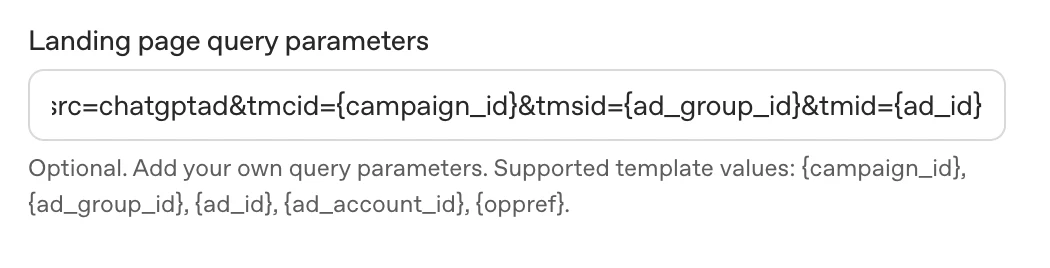
The ThoughtMetric tracking parameter for ChatGPT Ads is:
tmsrc=chatgptad&tmcid={campaign_id}&tmsid={ad_group_id}&tmid={ad_id}Add the parameter to your ChatGPT Ads
-
Copy the ThoughtMetric tracking parameter.
-
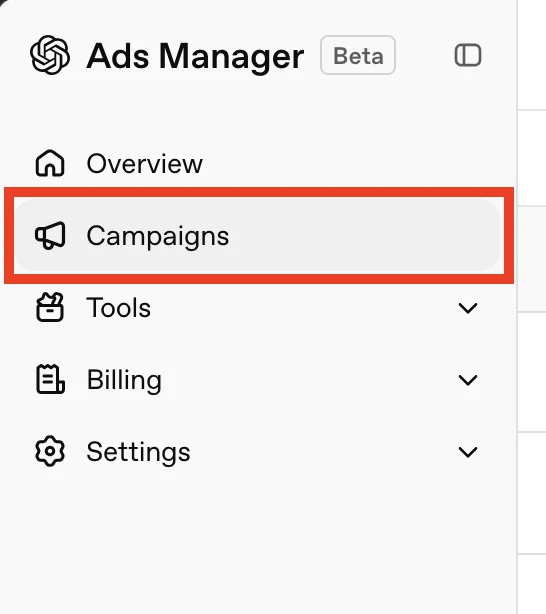
Open your campaigns
Click Campaigns in the Ads Manager sidebar.
-
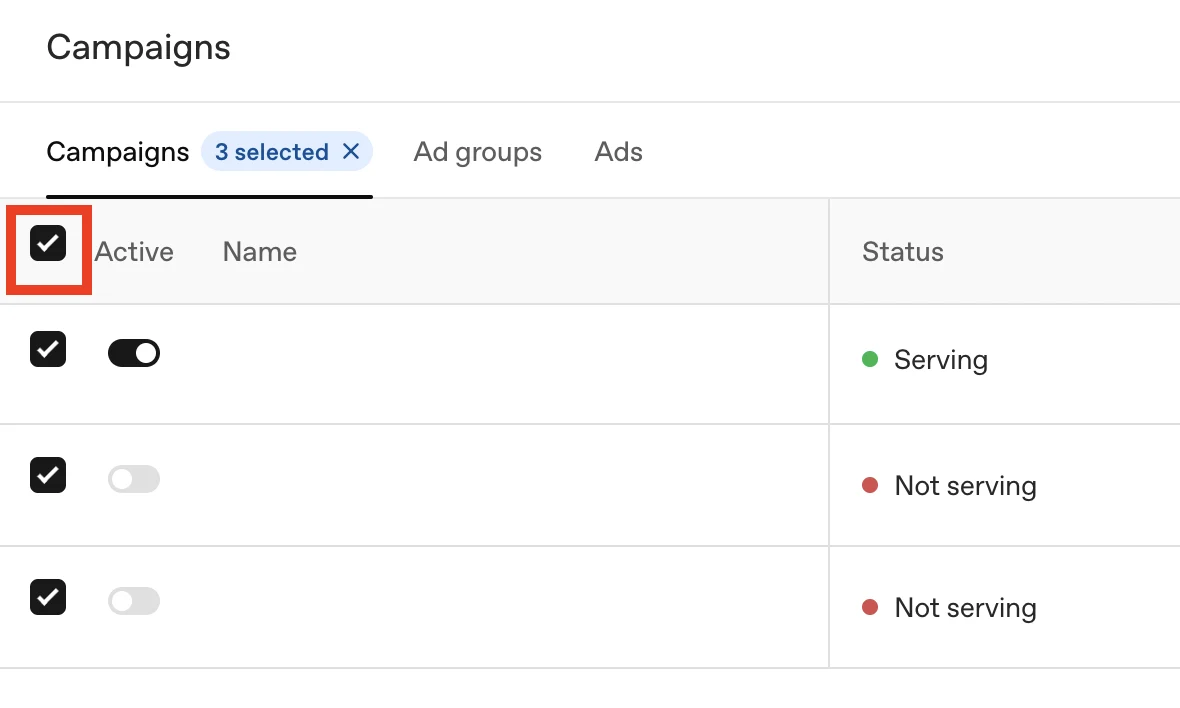
Select your campaigns
Select the applicable ad campaign or campaigns, or check the box indicated to select all campaigns.
-
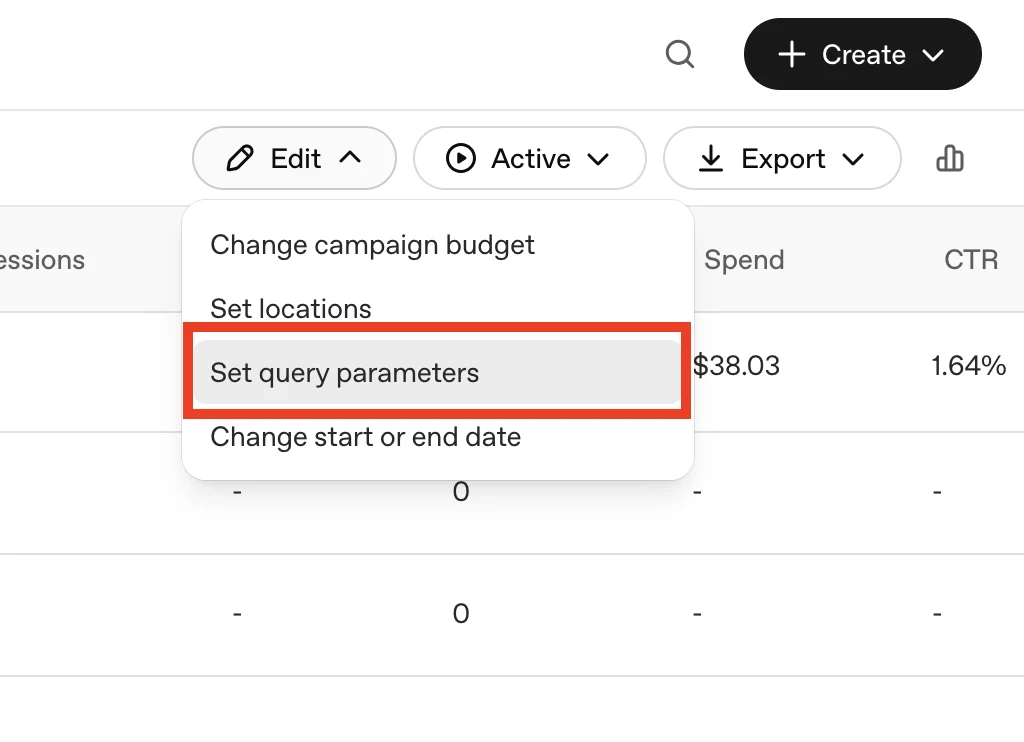
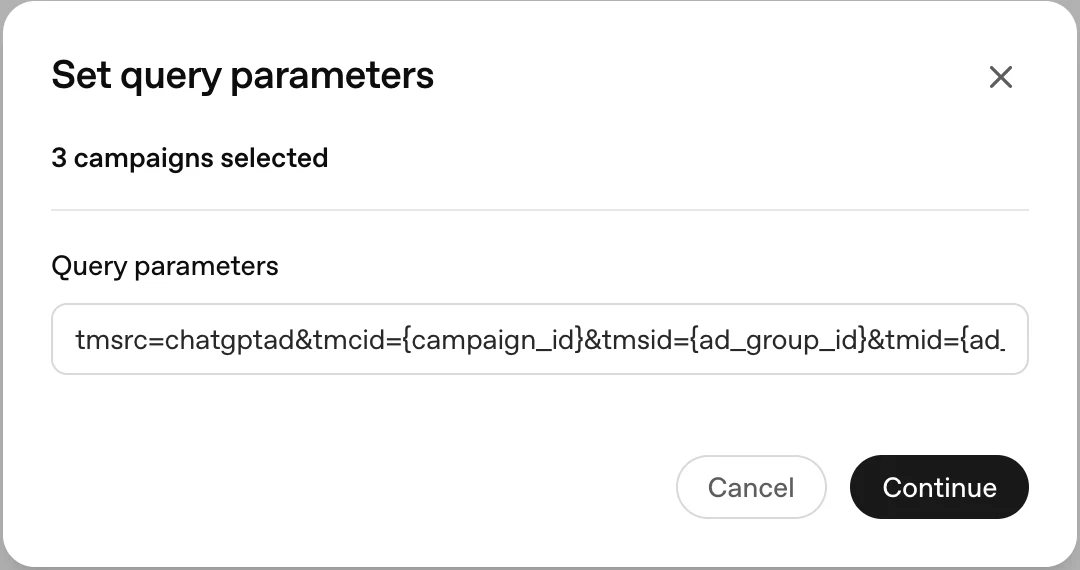
If you selected more than one campaign, set the query parameters
From the Edit menu, select Set query parameters.
Paste the ChatGPT Ads tracking parameter into the field and click Continue.
-
If you selected only one campaign, edit it
Click the Edit button itself. In the resulting popup, paste the ChatGPT Ads tracking parameter into the Landing page query parameters field and click Save.
Keep your existing tracking parameters
If you already have tracking parameters in the tracking template field, you can use the ThoughtMetric tracking parameters in addition to any tracking you already have in place.
To do this, append the ThoughtMetric tracking parameters to the end of your existing UTM string with an & symbol, starting with the tmsrc parameter.
For example, if your tracking template already contains this text:
utm_source=openaiAppend the ThoughtMetric tracking parameters so that the end result looks like this:
utm_source=openai&tmsrc=chatgptad&tmcid={campaign_id}&tmsid={ad_group_id}&tmid={ad_id}