
Install tracking
Install on WooCommerce
Install the ThoughtMetric plugin on a WooCommerce store.
To install ThoughtMetric on WooCommerce, you need to install our custom plugin. This takes about 15 minutes.
-
Create a ThoughtMetric account
Go to the ThoughtMetric sign-up page and sign up.
-
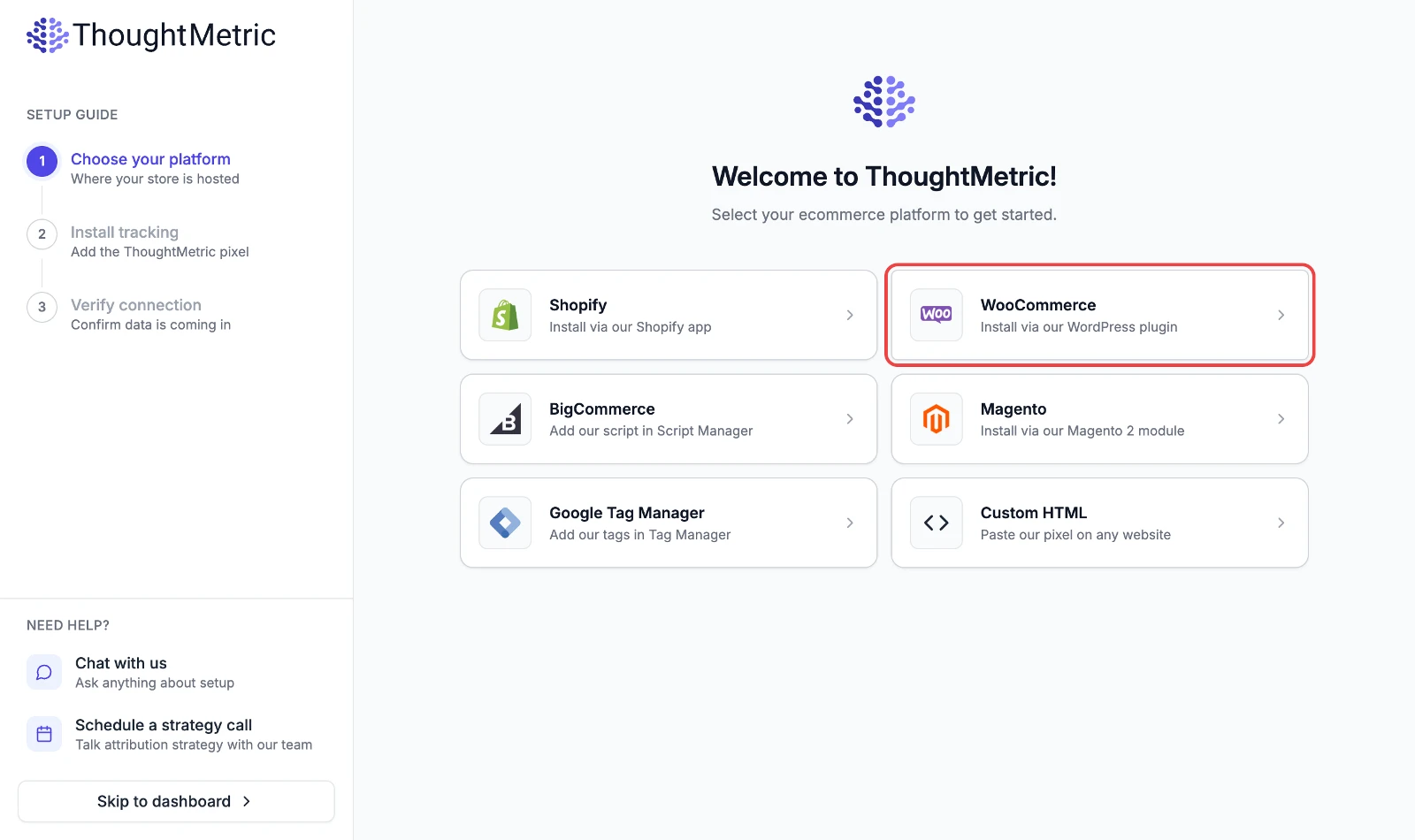
Select the WooCommerce platform
After you sign up, you are directed to an onboarding guide. Click the WooCommerce button to view the installation instructions for that platform.
-
Download the plugin
After you select WooCommerce as your platform, you will see a page with a link to download the plugin.
-
Log in to your WordPress account.
-
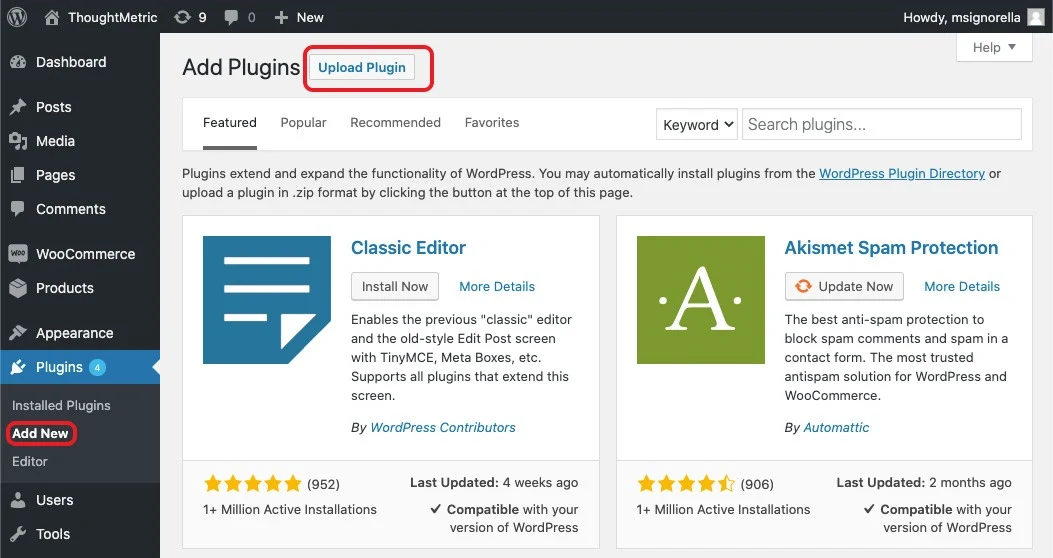
Open the plugin uploader
Click Plugins, then Add New, then Upload Plugin.
-
Upload the ThoughtMetric plugin from your computer to WordPress, then activate it.
-
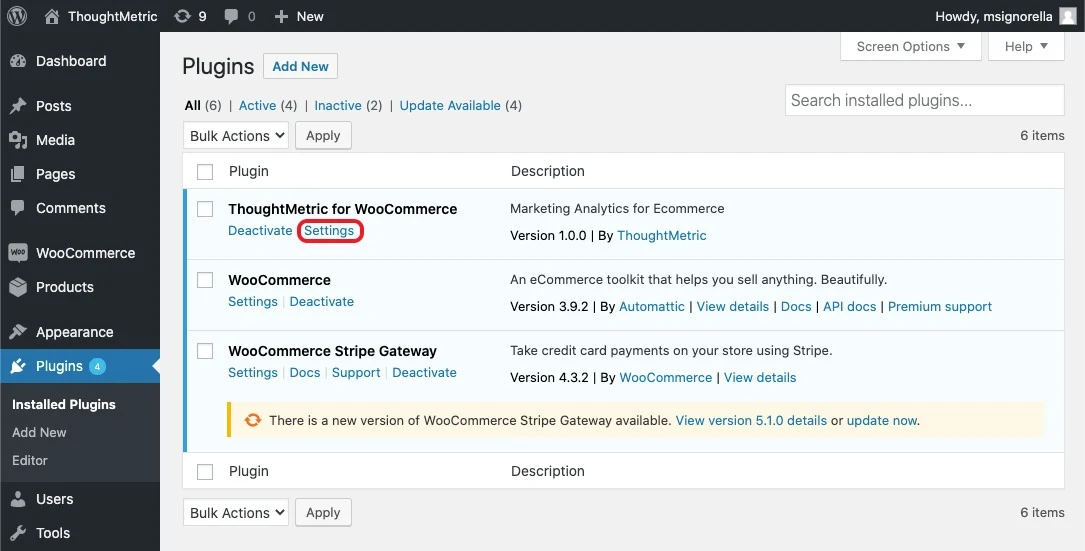
Open the plugin settings
Click Settings under the ThoughtMetric plugin.
-
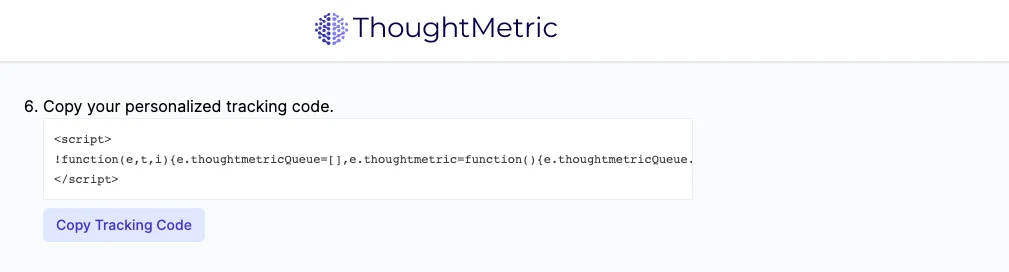
Copy the tracking code
Copy your personalized tracking code from the onboarding page.
-
Paste the tracking code
Paste the code into the Tracking Code input field and click Save Changes.
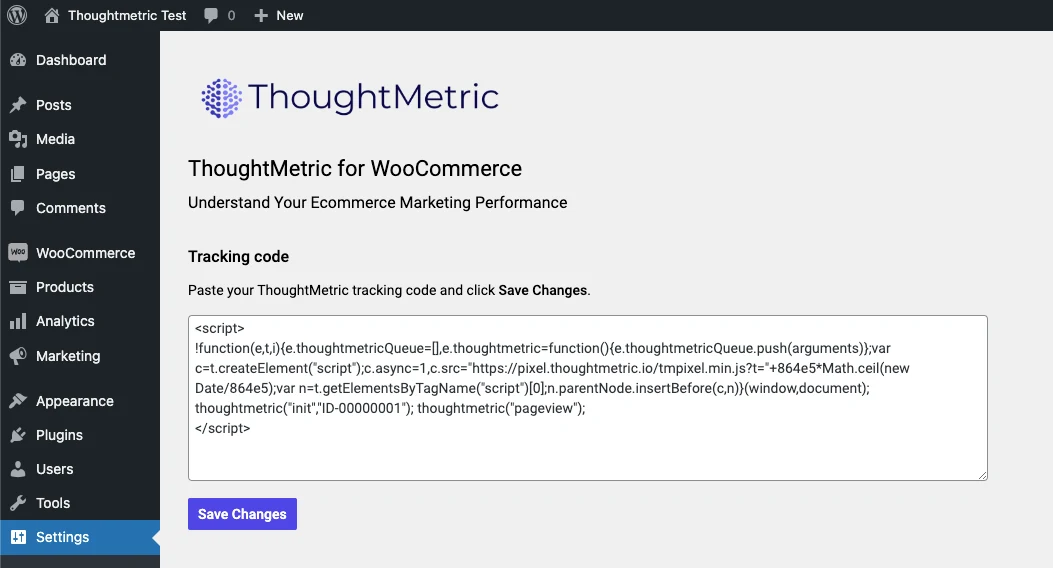
-
Add the tracking code to other landing pages
If you use any additional landing pages outside of WooCommerce, make sure the ThoughtMetric tracking code is placed on those as well.