Install tracking
Install on headless Shopify
Install the tracking code on a headless Shopify storefront.
A headless Shopify store has a custom-built front-end website but still uses the Shopify checkout system to handle payments and back-end management. If you run a regular Shopify store, follow the Shopify installation guide instead.
Install the ThoughtMetric app
The first part of the installation is to install the ThoughtMetric app on your store.
-
Create a ThoughtMetric account
Go to the ThoughtMetric sign-up page and sign up.
-
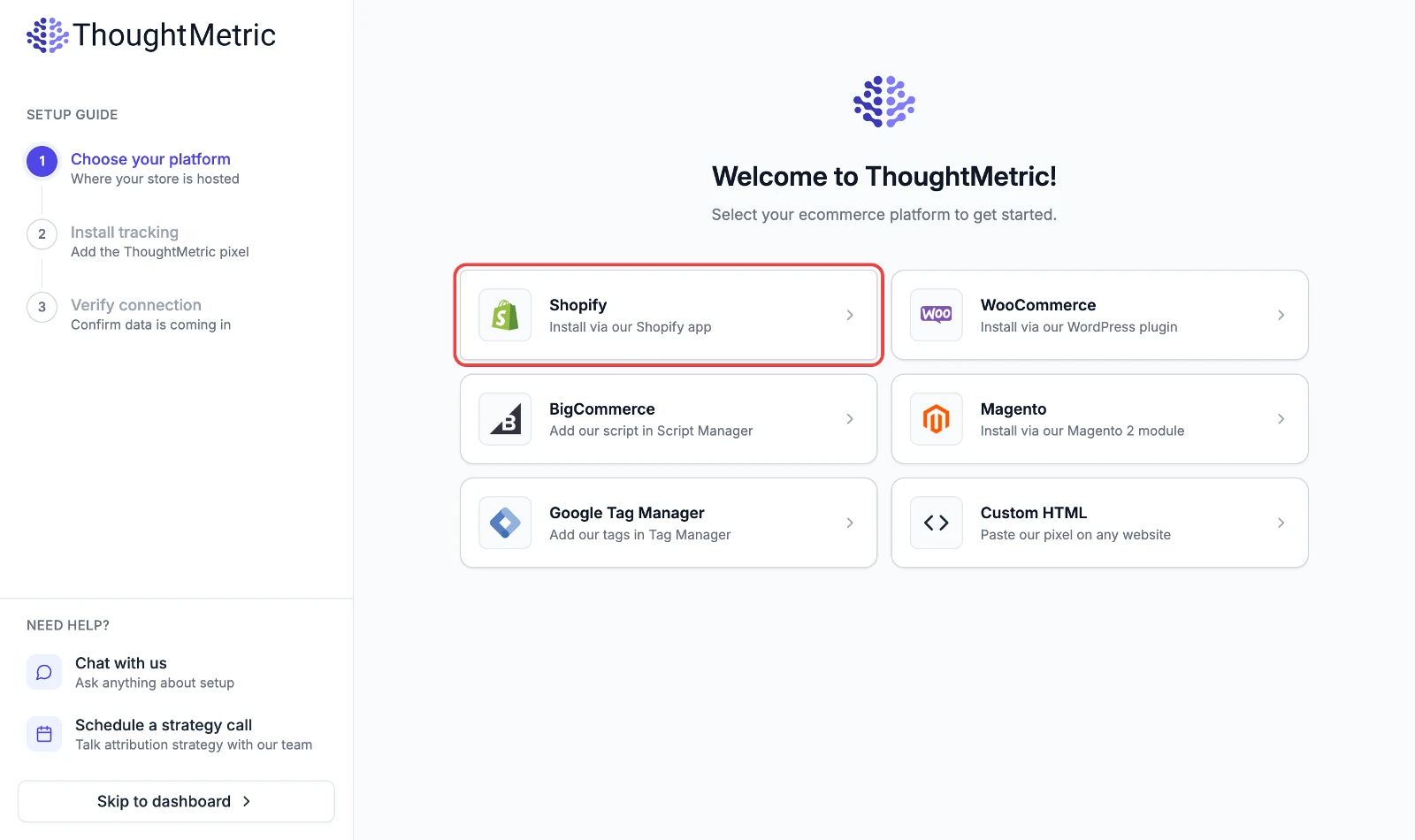
Select the Shopify platform
After you sign up, you are directed to an onboarding guide. Click the Shopify button to view the installation instructions for that platform.
-
Install the app
Enter your Shopify store URL and click Install App to install the ThoughtMetric app on your Shopify store. If you need help, see how to find your Shopify store URL.

-
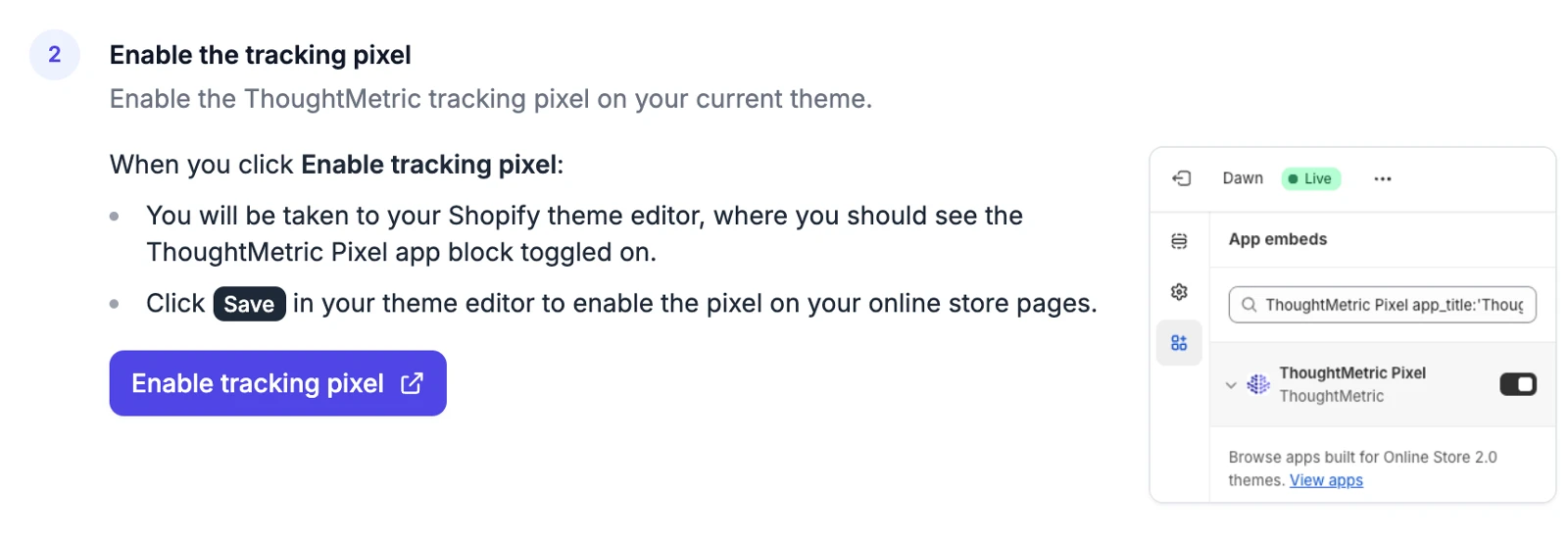
Enable the tracking pixel
Click the Enable Tracking Pixel button to enable the ThoughtMetric tracking pixel on your theme. You are redirected to your Shopify theme editor, where you should see the ThoughtMetric Pixel app block toggled on. Click Save in your theme editor to enable the pixel.
Install the checkout extension
-
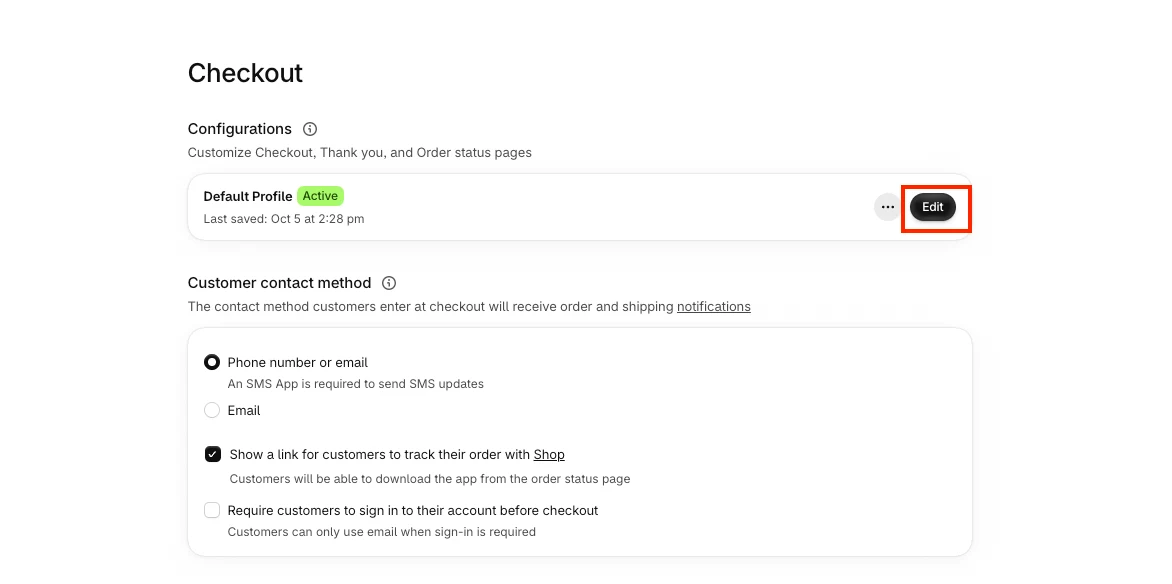
Open the checkout editor
Navigate to Settings → Checkout, then click Customize.
-
Add an app block to the Thank You page
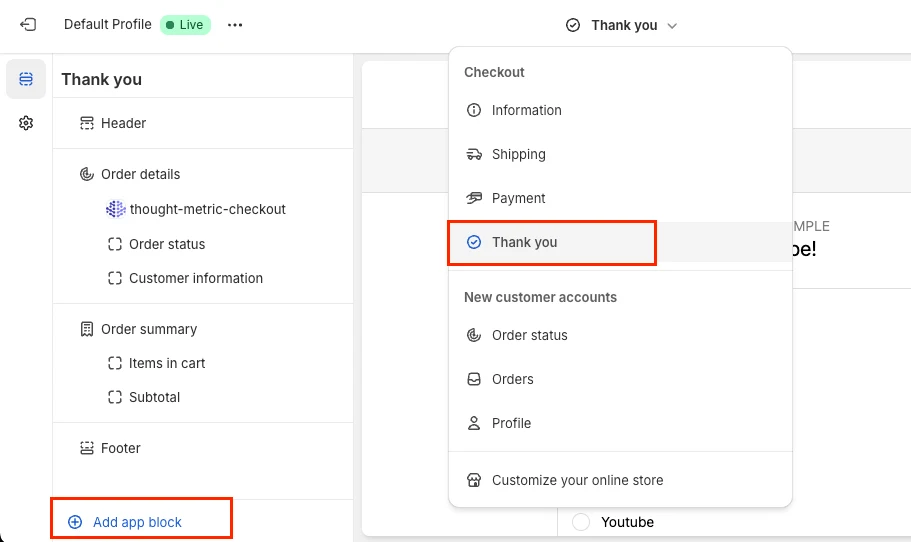
Select the Thank You Page from the page dropdown, then click Add App Block.
-
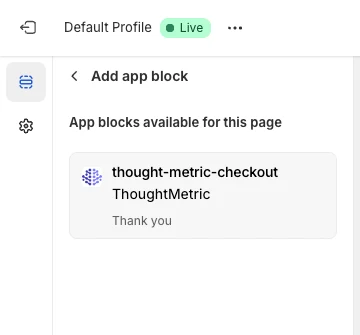
Select the ThoughtMetric App Block.
-
Click Save.
Verify the installation
Go back to the ThoughtMetric onboarding step you were on, scroll to the bottom of the page and click Done. This brings you to the final step, where ThoughtMetric checks that the tracking code has been installed correctly. Once ThoughtMetric detects the tracking code, setup is complete and you can proceed to the ThoughtMetric dashboard.
ThoughtMetric detects a working installation by listening for data coming from your website. To speed up detection, go to your website and refresh the page a few times to send data our way.
Install the pixel on your headless front end
-
Switch your e-commerce platform to Custom
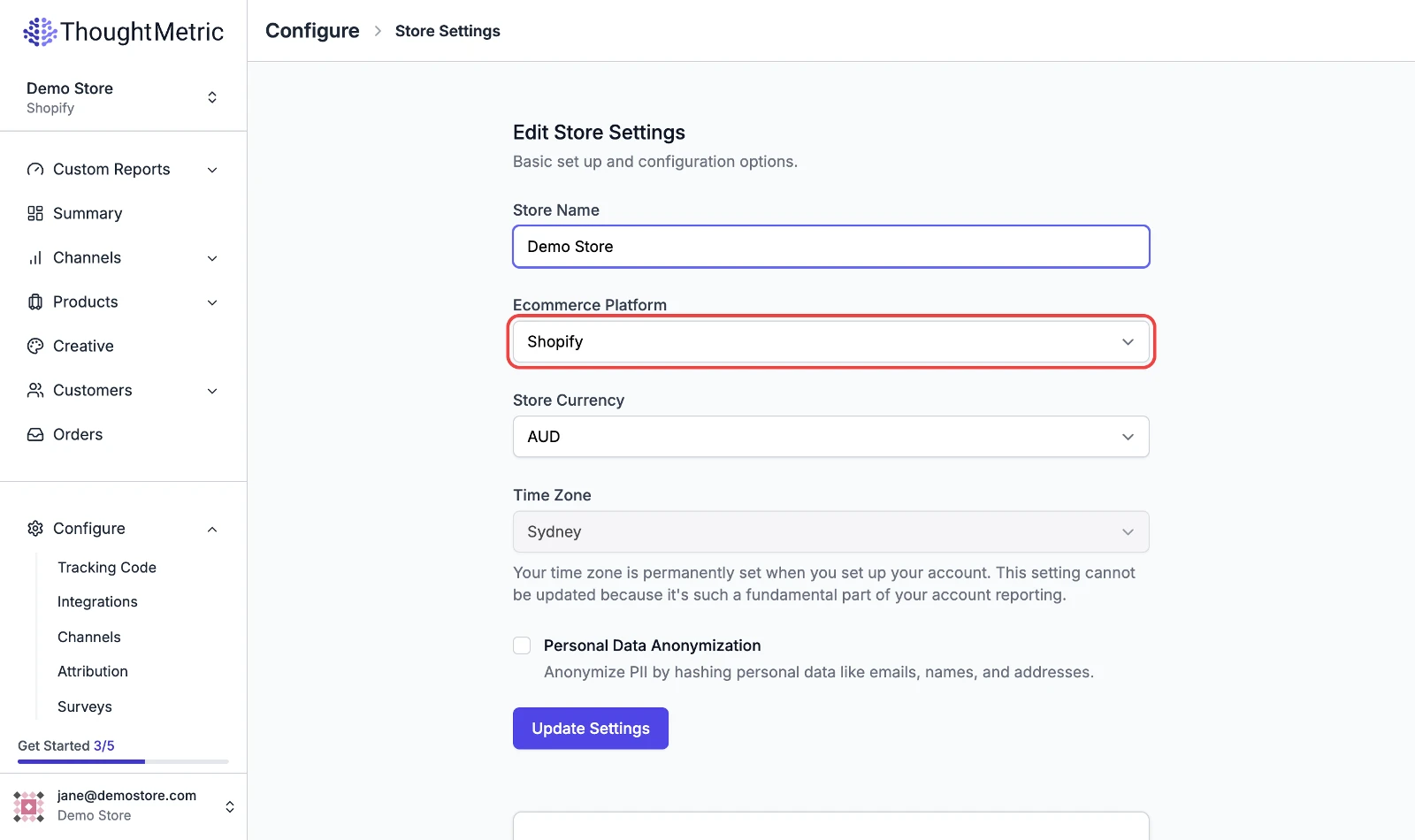
In ThoughtMetric, go to the Configure → Store Settings page and change your e-commerce platform to Custom.
-
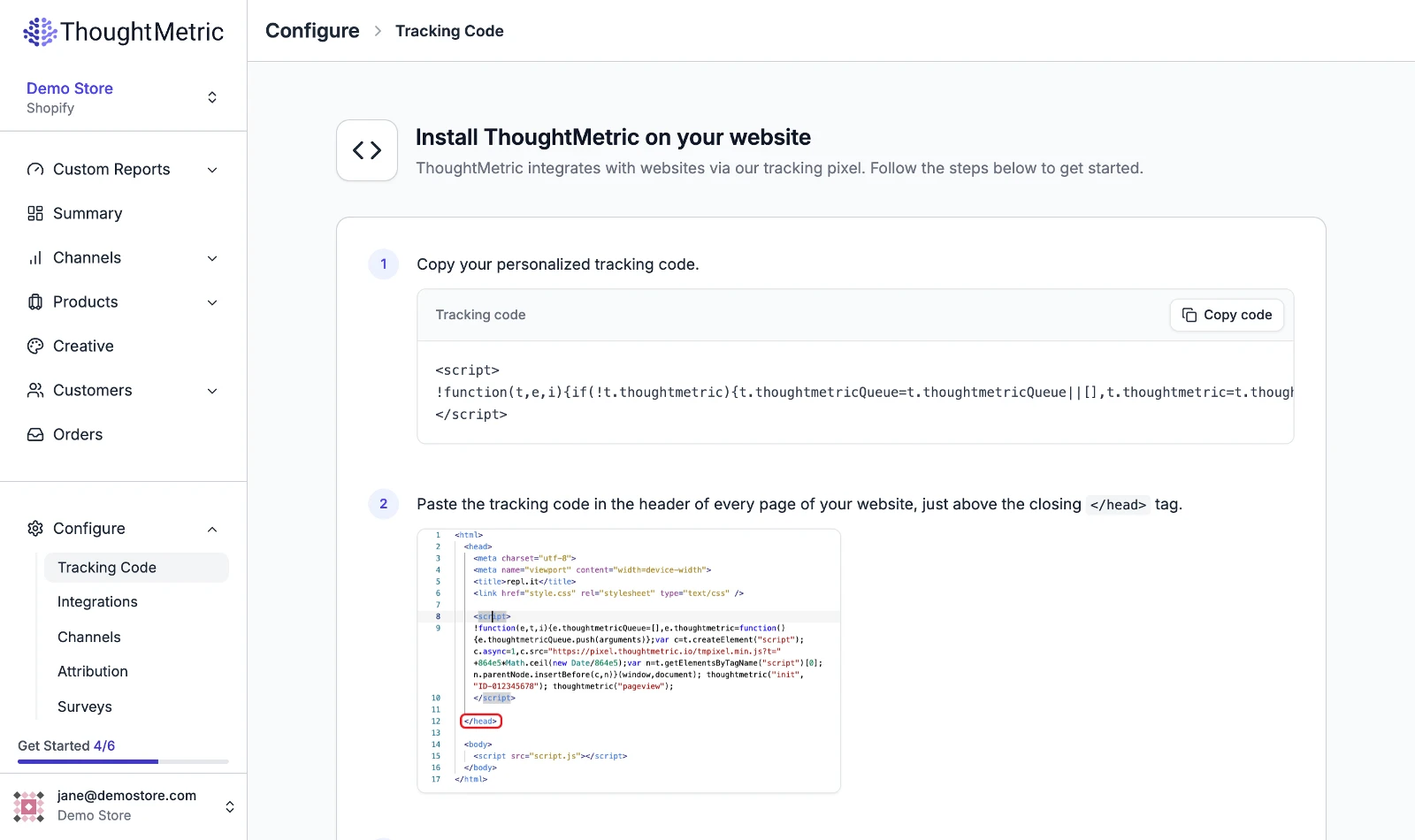
Install the tracking pixel code in your front end
Go to the Configure → Tracking Code page. Here you will find the tracking pixel code that needs to be installed in the header of your custom front end.